Chat Layouts components
Full chat windows, sidebars, widgets and empty states. Each one is a single HTML file with a live demo.
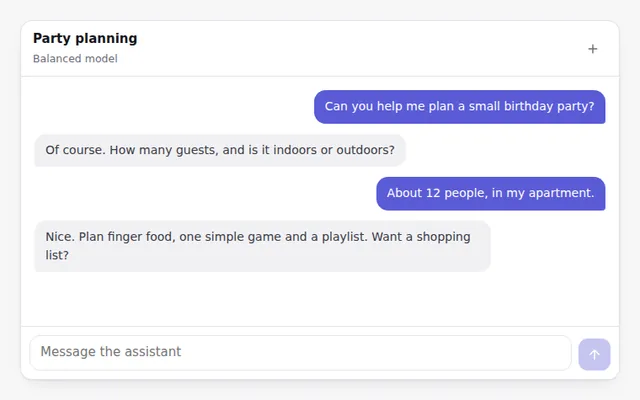
Full Chat Window
A complete chat screen with a header, scrolling messages and a prompt box at the bottom. Replies stream in, and the view follows along.
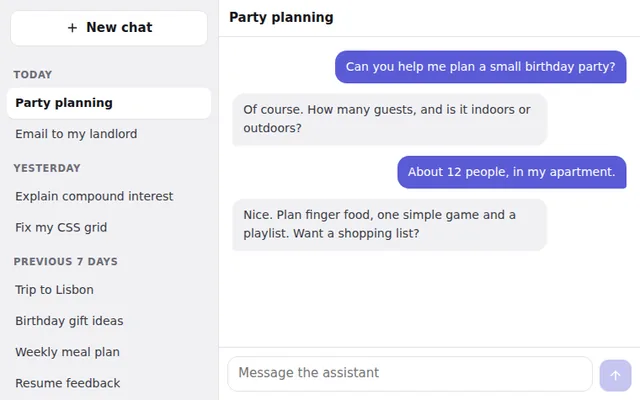
Chat Sidebar
A sidebar with past chats grouped by date, a New chat button and the current chat highlighted. On phones it slides in from a menu button.
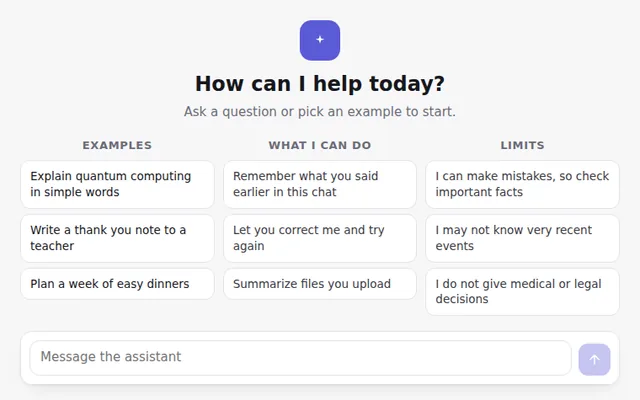
Empty Chat Welcome Screen
The first screen of a new chat: a greeting, example prompts, what the assistant can do and its limits, with the prompt box ready below.
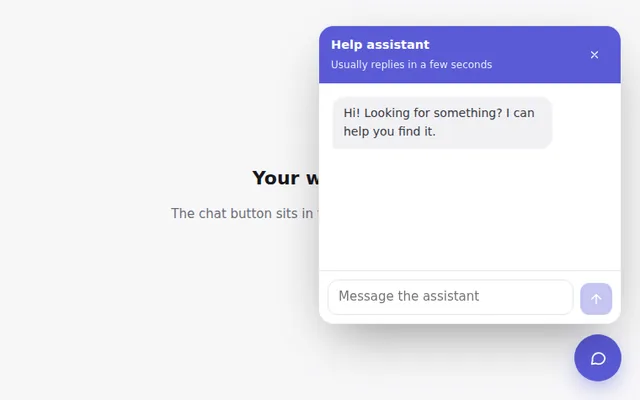
Floating Chat Widget
A round chat button in the corner that opens a small chat panel, with an unread badge. Escape or the close button hides it again.
Split View: Chat and Document
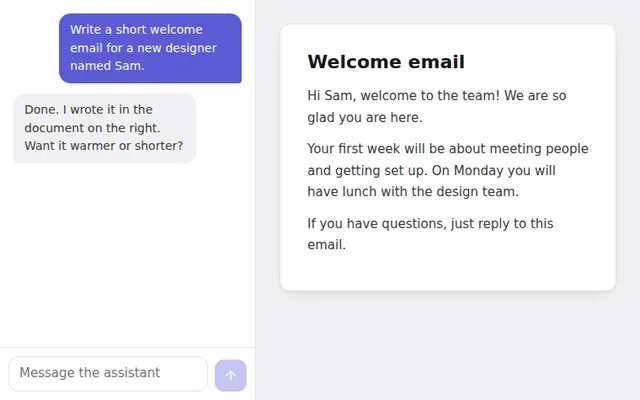
Chat on one side and a live document on the other, the layout used by AI writing tools. On phones it switches to two tabs.
Mobile Chat Screen
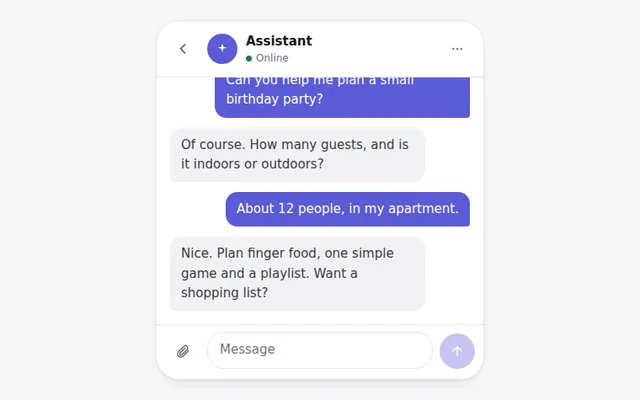
A phone-sized chat with a back button, assistant name and status, messages, and a prompt bar with an attach button, sized for thumbs.
Conversation Search
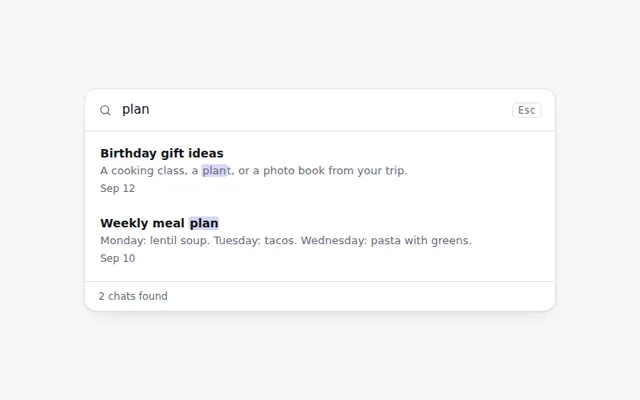
Search through past chats as you type. Matching words are highlighted, and a friendly message appears when nothing is found.
Chat List Item Menu
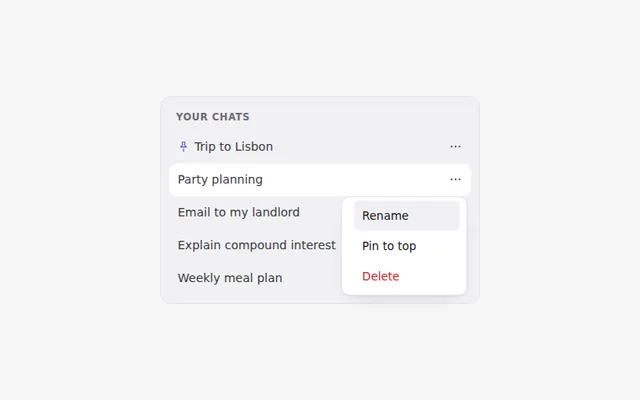
Each chat in the list has a menu to rename it in place, pin it to the top, or delete it with an undo option.
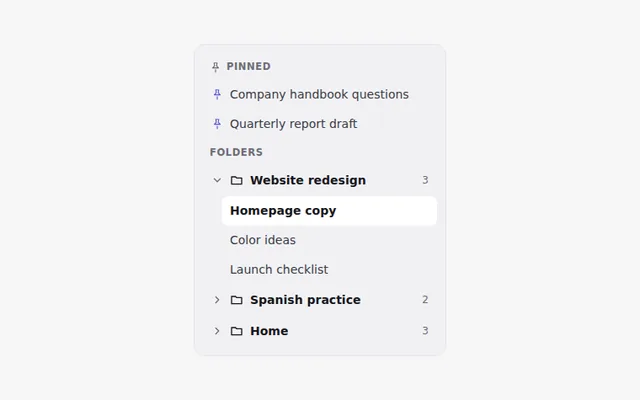
Sidebar with Pinned Chats and Folders
A chat sidebar with a pinned section and folders you can open and close, like projects. It remembers which folders are open.
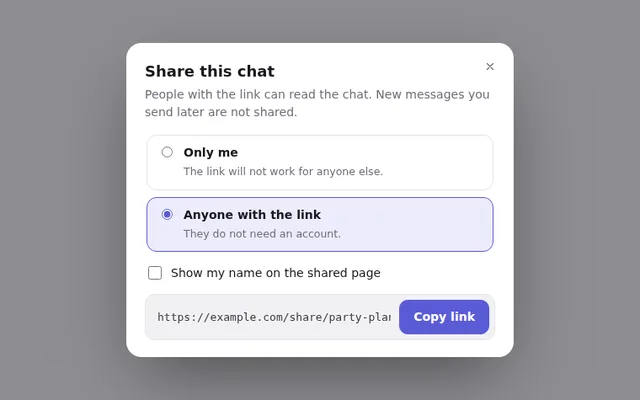
Share Conversation Dialog
Share a chat with a link. Choose who can see it, whether to show your name, then copy the link with one click.