Agent Progress Steps
A checklist of what an AI agent is doing right now. Each step shows a spinner while it runs and a tick when it is done.
One HTML file with the CSS and JavaScript inside. No library needed. MIT license.
How to use it
- Click Copy the code, or download the file.
- Paste the CSS into your stylesheet, the HTML where you want the component, and the script before the closing body tag.
- Change
--accentat the top of the CSS to your brand color, then connect the events to your AI service.
What you get
- Works in light and dark mode automatically
- Keyboard friendly, with labels for screen readers
- Fits phones, tablets and desktops
- Respects the reduced motion setting
- No framework, so it works with any stack
The code
<!DOCTYPE html>
<!--
  Agent Progress Steps: a free AI UI component
  From 100 Free AI UI Components by MM Rahman Bappi, MIT license
  https://mmrahmanbappi.github.io/100-free-ai-ui-components/

  How to use: copy the CSS, HTML and JavaScript below into your page.
  Colors are CSS variables at the top. Change --accent to match your brand.
  Light and dark themes follow the visitor's system setting, or set
  data-theme="dark" or data-theme="light" on the html element.
-->
<html lang="en">
<head>
<meta charset="UTF-8">
<meta name="viewport" content="width=device-width, initial-scale=1">
<title>Agent Progress Steps | Free AI UI Component</title>
<meta name="description" content="A checklist of what an AI agent is doing right now. Each step shows a spinner while it runs and a tick when it is done.">
<meta name="robots" content="noindex, follow">
<style>
:root{
  --accent:#5b5bd6; --accent-ink:#fff; --accent-soft:#ececfc;
  --bg:#f7f7f8; --surface:#fff; --surface-2:#f1f1f4; --ink:#17171c; --text:#3a3a44; --muted:#6c6c78;
  --line:#e3e3e8; --good:#15803d; --warn:#b45309; --bad:#c62828;
  --radius:14px; --shadow:0 1px 2px rgba(20,20,30,.06),0 8px 24px -12px rgba(20,20,30,.18);
  --font:system-ui,-apple-system,"Segoe UI",Roboto,Ubuntu,sans-serif; --mono:ui-monospace,"Cascadia Code",Menlo,Consolas,monospace;
}
@media (prefers-color-scheme:dark){:root:not([data-theme=light]){
  --accent:#8b8bff; --accent-ink:#0f0f16; --accent-soft:#25254a;
  --bg:#0f0f13; --surface:#18181f; --surface-2:#212129; --ink:#f3f3f6; --text:#d4d4dc; --muted:#9a9aa8;
  --line:#2c2c36; --good:#4ade80; --warn:#fbbf24; --bad:#f87171; --shadow:0 1px 2px rgba(0,0,0,.4),0 10px 30px -12px rgba(0,0,0,.6);
}}
:root[data-theme=dark]{
  --accent:#8b8bff; --accent-ink:#0f0f16; --accent-soft:#25254a;
  --bg:#0f0f13; --surface:#18181f; --surface-2:#212129; --ink:#f3f3f6; --text:#d4d4dc; --muted:#9a9aa8;
  --line:#2c2c36; --good:#4ade80; --warn:#fbbf24; --bad:#f87171; --shadow:0 1px 2px rgba(0,0,0,.4),0 10px 30px -12px rgba(0,0,0,.6);
}
*{box-sizing:border-box}
html,body{margin:0}
body{min-height:100vh;display:grid;grid-template-columns:minmax(0,1fr);place-items:center;padding:24px;background:var(--bg);color:var(--text);font:15px/1.5 var(--font);-webkit-font-smoothing:antialiased}
button,input,textarea,select{font:inherit;color:inherit}
:focus-visible{outline:2px solid var(--accent);outline-offset:2px}
[hidden]{display:none!important}
.sr{position:absolute;width:1px;height:1px;overflow:hidden;clip:rect(0 0 0 0);white-space:nowrap}
@media (prefers-reduced-motion:reduce){*,*::before,*::after{animation-duration:.01ms!important;animation-iteration-count:1!important;transition:none!important}}
/* ---- component ---- */
.wrap{width:min(100%,640px);display:flex;flex-direction:column;gap:14px}
.ai{display:flex;gap:12px;align-items:flex-start}
.av{width:32px;height:32px;border-radius:50%;background:var(--accent);color:var(--accent-ink);display:grid;place-items:center;flex:none}
.bubble{background:var(--surface);border:1px solid var(--line);border-radius:4px 16px 16px 16px;padding:12px 15px;box-shadow:var(--shadow);color:var(--text);min-width:0;max-width:100%}
.meta{font-size:12px;color:var(--muted)}
.replay{align-self:center;border:1px solid var(--line);background:var(--surface);color:var(--text);border-radius:999px;padding:6px 14px;font-size:13px;cursor:pointer}
.replay:hover{border-color:var(--accent);color:var(--ink)}
.card{width:100%;background:var(--surface);border:1px solid var(--line);border-radius:var(--radius);box-shadow:var(--shadow);padding:16px 18px}
.card h2{font-size:15px;margin:0 0 12px;color:var(--ink)}
.steps{list-style:none;margin:0;padding:0;display:flex;flex-direction:column;gap:10px}
.steps li{display:flex;align-items:center;gap:10px;font-size:14px;color:var(--muted)}
.st{width:20px;height:20px;border-radius:50%;border:2px solid var(--line);display:grid;place-items:center;flex:none}
li.run{color:var(--ink);font-weight:600}li.run .st{border-color:var(--accent);border-right-color:transparent;animation:spin .8s linear infinite}
li.done{color:var(--text)}li.done .st{background:var(--good);border-color:var(--good);color:#fff}
@keyframes spin{to{transform:rotate(360deg)}}
.bar{height:6px;background:var(--surface-2);border-radius:99px;margin-top:14px;overflow:hidden}.bar i{display:block;height:100%;width:0;background:var(--accent);transition:width .4s}
</style>
</head>
<body>
<div class="wrap">
  <div class="card"><h2 id="h" aria-live="polite">Working on your report</h2>
    <ol class="steps" id="s">
      <li><span class="st"></span>Reading 3 uploaded files</li>
      <li><span class="st"></span>Finding sales numbers for each month</li>
      <li><span class="st"></span>Building a summary table</li>
      <li><span class="st"></span>Writing the key points</li>
    </ol><div class="bar" aria-hidden="true"><i id="bar"></i></div></div>
  <button class="replay" id="r" type="button">Run again</button>
</div>
<script>
// Demo helper: add ?theme=dark or ?theme=light to the address to preview a theme.
(function(){var t=new URLSearchParams(location.search).get('theme');if(t)document.documentElement.dataset.theme=t;})();
var li=[].slice.call(document.querySelectorAll('#s li')),bar=document.getElementById('bar'),h=document.getElementById('h'),timers=[];
function mark(i){li.forEach(function(x,j){x.className=j<i?'done':j===i?'run':'';x.querySelector('.st').innerHTML=j<i?'<svg viewBox="0 0 24 24" width="16" height="16" fill="none" stroke="currentColor" stroke-width="2.4" stroke-linecap="round" stroke-linejoin="round" aria-hidden="true"><path d="M4 12l5 5L20 6"/></svg>':'';});bar.style.width=(i/li.length*100)+'%';}
function run(){timers.forEach(clearTimeout);timers=[];h.textContent='Working on your report';mark(0);
  li.forEach(function(_,i){timers.push(setTimeout(function(){mark(i+1);if(i===li.length-1)h.textContent='Your report is ready';},1100*(i+1)));});}
document.getElementById('r').addEventListener('click',run);run();
</script>
</body>
</html>
More thinking and loading components
Typing Dots
Three bouncing dots inside an answer bubble, the classic sign that the AI is writing a reply.
Thinking Shimmer
A soft light moves across the word Thinking while the AI works, then it changes to how long the thinking took.
Streaming Text
The answer appears word by word with a blinking cursor, the way most AI chat apps show a reply as it is written.
Reasoning Panel
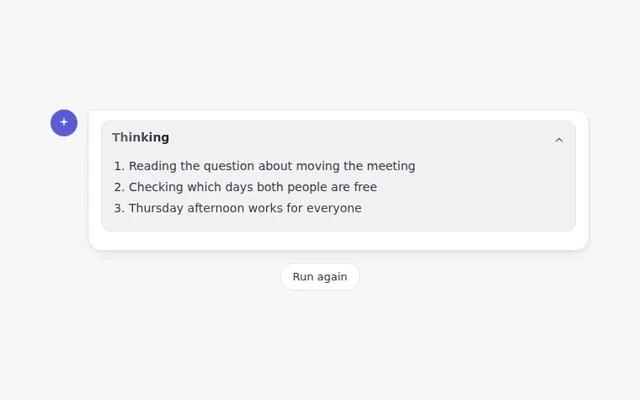
A panel that shows each thinking step while the AI works, then folds itself away with a summary you can open again.
Skeleton Message
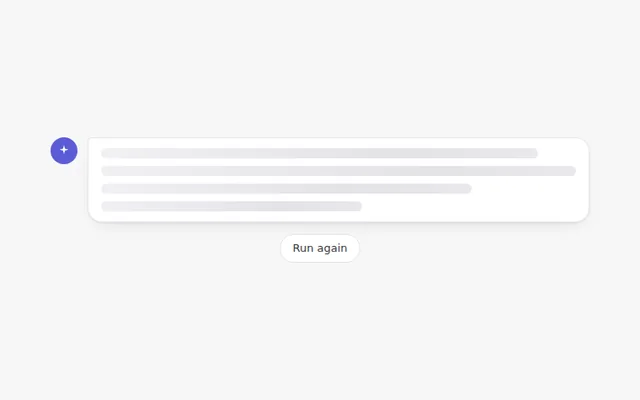
Grey placeholder lines with a moving shine that hold the space of the answer while it loads, so the page does not jump.
AI Orb
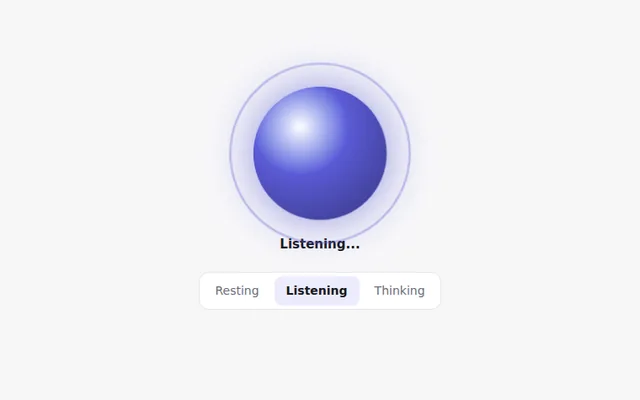
A glowing orb that shows what the assistant is doing: resting, listening or thinking. Great for voice and assistant screens.