Skeleton Message
Grey placeholder lines with a moving shine that hold the space of the answer while it loads, so the page does not jump.
One HTML file with the CSS and JavaScript inside. No library needed. MIT license.
How to use it
- Click Copy the code, or download the file.
- Paste the CSS into your stylesheet, the HTML where you want the component, and the script before the closing body tag.
- Change
--accentat the top of the CSS to your brand color, then connect the events to your AI service.
What you get
- Works in light and dark mode automatically
- Keyboard friendly, with labels for screen readers
- Fits phones, tablets and desktops
- Respects the reduced motion setting
- No framework, so it works with any stack
The code
<!DOCTYPE html>
<!--
  Skeleton Message: a free AI UI component
  From 100 Free AI UI Components by MM Rahman Bappi, MIT license
  https://mmrahmanbappi.github.io/100-free-ai-ui-components/

  How to use: copy the CSS, HTML and JavaScript below into your page.
  Colors are CSS variables at the top. Change --accent to match your brand.
  Light and dark themes follow the visitor's system setting, or set
  data-theme="dark" or data-theme="light" on the html element.
-->
<html lang="en">
<head>
<meta charset="UTF-8">
<meta name="viewport" content="width=device-width, initial-scale=1">
<title>Skeleton Message | Free AI UI Component</title>
<meta name="description" content="Grey placeholder lines with a moving shine that hold the space of the answer while it loads, so the page does not jump.">
<meta name="robots" content="noindex, follow">
<style>
:root{
  --accent:#5b5bd6; --accent-ink:#fff; --accent-soft:#ececfc;
  --bg:#f7f7f8; --surface:#fff; --surface-2:#f1f1f4; --ink:#17171c; --text:#3a3a44; --muted:#6c6c78;
  --line:#e3e3e8; --good:#15803d; --warn:#b45309; --bad:#c62828;
  --radius:14px; --shadow:0 1px 2px rgba(20,20,30,.06),0 8px 24px -12px rgba(20,20,30,.18);
  --font:system-ui,-apple-system,"Segoe UI",Roboto,Ubuntu,sans-serif; --mono:ui-monospace,"Cascadia Code",Menlo,Consolas,monospace;
}
@media (prefers-color-scheme:dark){:root:not([data-theme=light]){
  --accent:#8b8bff; --accent-ink:#0f0f16; --accent-soft:#25254a;
  --bg:#0f0f13; --surface:#18181f; --surface-2:#212129; --ink:#f3f3f6; --text:#d4d4dc; --muted:#9a9aa8;
  --line:#2c2c36; --good:#4ade80; --warn:#fbbf24; --bad:#f87171; --shadow:0 1px 2px rgba(0,0,0,.4),0 10px 30px -12px rgba(0,0,0,.6);
}}
:root[data-theme=dark]{
  --accent:#8b8bff; --accent-ink:#0f0f16; --accent-soft:#25254a;
  --bg:#0f0f13; --surface:#18181f; --surface-2:#212129; --ink:#f3f3f6; --text:#d4d4dc; --muted:#9a9aa8;
  --line:#2c2c36; --good:#4ade80; --warn:#fbbf24; --bad:#f87171; --shadow:0 1px 2px rgba(0,0,0,.4),0 10px 30px -12px rgba(0,0,0,.6);
}
*{box-sizing:border-box}
html,body{margin:0}
body{min-height:100vh;display:grid;grid-template-columns:minmax(0,1fr);place-items:center;padding:24px;background:var(--bg);color:var(--text);font:15px/1.5 var(--font);-webkit-font-smoothing:antialiased}
button,input,textarea,select{font:inherit;color:inherit}
:focus-visible{outline:2px solid var(--accent);outline-offset:2px}
[hidden]{display:none!important}
.sr{position:absolute;width:1px;height:1px;overflow:hidden;clip:rect(0 0 0 0);white-space:nowrap}
@media (prefers-reduced-motion:reduce){*,*::before,*::after{animation-duration:.01ms!important;animation-iteration-count:1!important;transition:none!important}}
/* ---- component ---- */
.wrap{width:min(100%,640px);display:flex;flex-direction:column;gap:14px}
.ai{display:flex;gap:12px;align-items:flex-start}
.av{width:32px;height:32px;border-radius:50%;background:var(--accent);color:var(--accent-ink);display:grid;place-items:center;flex:none}
.bubble{background:var(--surface);border:1px solid var(--line);border-radius:4px 16px 16px 16px;padding:12px 15px;box-shadow:var(--shadow);color:var(--text);min-width:0;max-width:100%}
.meta{font-size:12px;color:var(--muted)}
.replay{align-self:center;border:1px solid var(--line);background:var(--surface);color:var(--text);border-radius:999px;padding:6px 14px;font-size:13px;cursor:pointer}
.replay:hover{border-color:var(--accent);color:var(--ink)}
.sk{display:flex;flex-direction:column;gap:9px;width:100%}
.sk i{height:12px;border-radius:6px;background:linear-gradient(90deg,var(--surface-2) 25%,var(--line) 50%,var(--surface-2) 75%);background-size:300% 100%;animation:sh 1.4s ease infinite}
.sk i:nth-child(1){width:92%}.sk i:nth-child(2){width:100%}.sk i:nth-child(3){width:78%}.sk i:nth-child(4){width:55%}
@keyframes sh{from{background-position:100% 0}to{background-position:0 0}}
.bubble{flex:1}.txt{animation:f .3s ease}@keyframes f{from{opacity:0}}
</style>
</head>
<body>
<div class="wrap">
  <div class="ai"><div class="av" aria-hidden="true"><svg viewBox="0 0 24 24" width="16" height="16" fill="currentColor" aria-hidden="true"><path d="M12 2l1.8 6.2L20 10l-6.2 1.8L12 18l-1.8-6.2L4 10l6.2-1.8z"/></svg></div><div class="bubble" id="b" role="status" aria-live="polite"></div></div>
  <button class="replay" id="r" type="button">Run again</button>
</div>
<script>
// Demo helper: add ?theme=dark or ?theme=light to the address to preview a theme.
(function(){var t=new URLSearchParams(location.search).get('theme');if(t)document.documentElement.dataset.theme=t;})();
var b=document.getElementById('b'),t=null;
function run(){clearTimeout(t);b.innerHTML='<span class="sr">Loading the answer</span><div class="sk" aria-hidden="true"><i></i><i></i><i></i><i></i></div>';
  t=setTimeout(function(){b.innerHTML='<div class="txt">Your trip costs about $640 in total: $380 for the hotel, $160 for food and $100 for trains and museum tickets.</div>';},2600);}
document.getElementById('r').addEventListener('click',run);run();
</script>
</body>
</html>
More thinking and loading components
Typing Dots
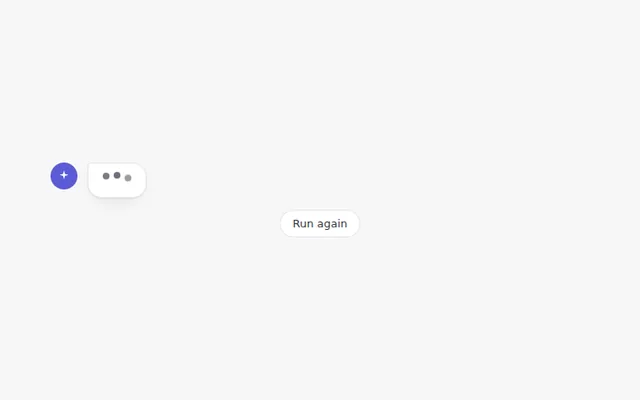
Three bouncing dots inside an answer bubble, the classic sign that the AI is writing a reply.
Thinking Shimmer
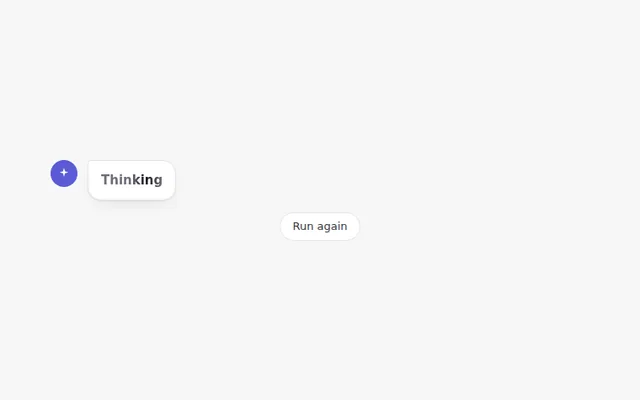
A soft light moves across the word Thinking while the AI works, then it changes to how long the thinking took.
Streaming Text
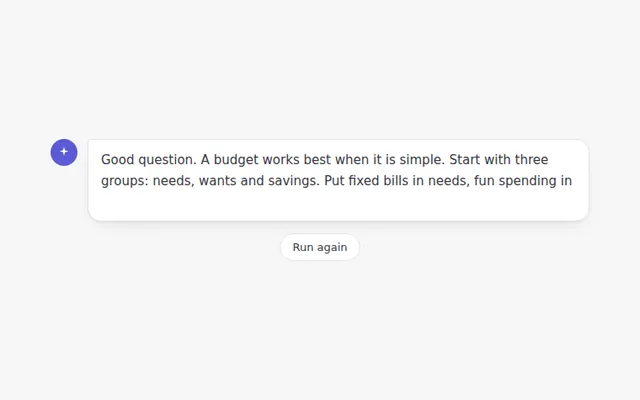
The answer appears word by word with a blinking cursor, the way most AI chat apps show a reply as it is written.
Reasoning Panel
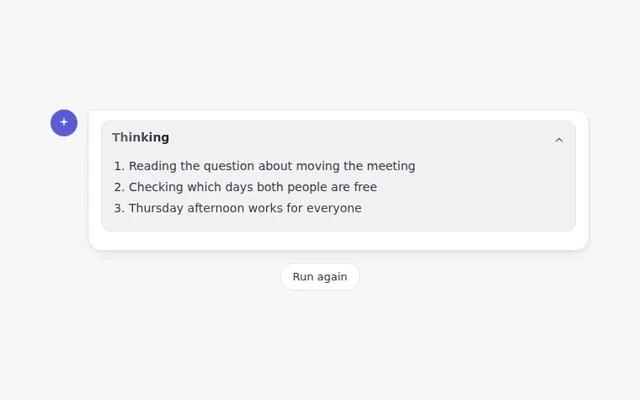
A panel that shows each thinking step while the AI works, then folds itself away with a summary you can open again.
Agent Progress Steps
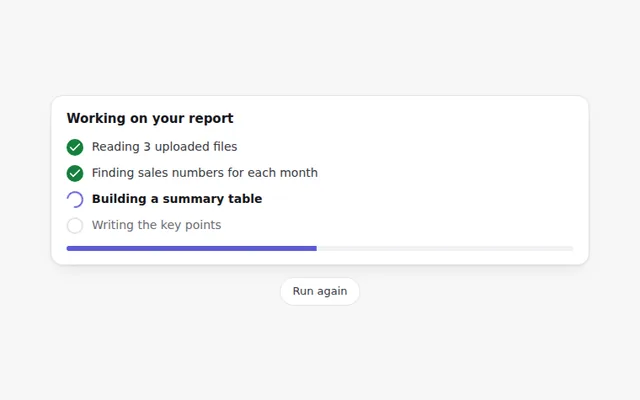
A checklist of what an AI agent is doing right now. Each step shows a spinner while it runs and a tick when it is done.
AI Orb
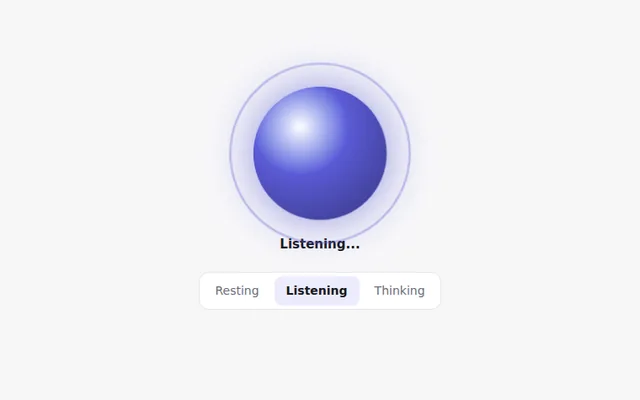
A glowing orb that shows what the assistant is doing: resting, listening or thinking. Great for voice and assistant screens.