Voice Mode Screen
A full voice conversation screen with a glowing circle that reacts while the AI speaks, live captions, and mute and end buttons.
One HTML file with the CSS and JavaScript inside. No library needed. MIT license.
How to use it
- Click Copy the code, or download the file.
- Paste the CSS into your stylesheet, the HTML where you want the component, and the script before the closing body tag.
- Change
--accentat the top of the CSS to your brand color, then connect the events to your AI service.
What you get
- Works in light and dark mode automatically
- Keyboard friendly, with labels for screen readers
- Fits phones, tablets and desktops
- Respects the reduced motion setting
- No framework, so it works with any stack
The code
<!DOCTYPE html>
<!--
  Voice Mode Screen: a free AI UI component
  From 100 Free AI UI Components by MM Rahman Bappi, MIT license
  https://mmrahmanbappi.github.io/100-free-ai-ui-components/

  How to use: copy the CSS, HTML and JavaScript below into your page.
  Colors are CSS variables at the top. Change --accent to match your brand.
  Light and dark themes follow the visitor's system setting, or set
  data-theme="dark" or data-theme="light" on the html element.
-->
<html lang="en">
<head>
<meta charset="UTF-8">
<meta name="viewport" content="width=device-width, initial-scale=1">
<title>Voice Mode Screen | Free AI UI Component</title>
<meta name="description" content="A full voice conversation screen with a glowing circle that reacts while the AI speaks, live captions, and mute and end buttons.">
<meta name="robots" content="noindex, follow">
<style>
:root{
  --accent:#5b5bd6; --accent-ink:#fff; --accent-soft:#ececfc;
  --bg:#f7f7f8; --surface:#fff; --surface-2:#f1f1f4; --ink:#17171c; --text:#3a3a44; --muted:#6c6c78;
  --line:#e3e3e8; --good:#15803d; --warn:#b45309; --bad:#c62828;
  --radius:14px; --shadow:0 1px 2px rgba(20,20,30,.06),0 8px 24px -12px rgba(20,20,30,.18);
  --font:system-ui,-apple-system,"Segoe UI",Roboto,Ubuntu,sans-serif; --mono:ui-monospace,"Cascadia Code",Menlo,Consolas,monospace;
}
@media (prefers-color-scheme:dark){:root:not([data-theme=light]){
  --accent:#8b8bff; --accent-ink:#0f0f16; --accent-soft:#25254a;
  --bg:#0f0f13; --surface:#18181f; --surface-2:#212129; --ink:#f3f3f6; --text:#d4d4dc; --muted:#9a9aa8;
  --line:#2c2c36; --good:#4ade80; --warn:#fbbf24; --bad:#f87171; --shadow:0 1px 2px rgba(0,0,0,.4),0 10px 30px -12px rgba(0,0,0,.6);
}}
:root[data-theme=dark]{
  --accent:#8b8bff; --accent-ink:#0f0f16; --accent-soft:#25254a;
  --bg:#0f0f13; --surface:#18181f; --surface-2:#212129; --ink:#f3f3f6; --text:#d4d4dc; --muted:#9a9aa8;
  --line:#2c2c36; --good:#4ade80; --warn:#fbbf24; --bad:#f87171; --shadow:0 1px 2px rgba(0,0,0,.4),0 10px 30px -12px rgba(0,0,0,.6);
}
*{box-sizing:border-box}
html,body{margin:0}
body{min-height:100vh;display:grid;grid-template-columns:minmax(0,1fr);place-items:center;padding:24px;background:var(--bg);color:var(--text);font:15px/1.5 var(--font);-webkit-font-smoothing:antialiased}
button,input,textarea,select{font:inherit;color:inherit}
:focus-visible{outline:2px solid var(--accent);outline-offset:2px}
[hidden]{display:none!important}
.sr{position:absolute;width:1px;height:1px;overflow:hidden;clip:rect(0 0 0 0);white-space:nowrap}
@media (prefers-reduced-motion:reduce){*,*::before,*::after{animation-duration:.01ms!important;animation-iteration-count:1!important;transition:none!important}}
/* ---- component ---- */
.vm{width:min(100%,420px);min-height:min(560px,calc(100vh - 48px));border-radius:28px;background:radial-gradient(circle at 50% 35%,color-mix(in srgb,var(--accent) 22%,var(--surface)),var(--surface) 70%);border:1px solid var(--line);box-shadow:var(--shadow);display:flex;flex-direction:column;align-items:center;justify-content:space-between;padding:26px 20px}
.top{font-size:13px;color:var(--muted);display:flex;align-items:center;gap:8px}.top i{width:8px;height:8px;border-radius:50%;background:var(--good)}
.orb{width:170px;height:170px;border-radius:50%;background:radial-gradient(circle at 35% 30%,#fff,var(--accent) 45%,color-mix(in srgb,var(--accent) 55%,#000));box-shadow:0 0 70px -10px var(--accent);transition:transform .12s linear}
.cap{min-height:5.5em;text-align:center;font-size:17px;line-height:1.5;color:var(--ink);max-width:340px}
.cap small{display:block;font-size:12px;color:var(--muted);text-transform:uppercase;letter-spacing:.06em;margin-bottom:4px}
.ctl{display:flex;gap:18px}
.cb{width:60px;height:60px;border-radius:50%;border:1px solid var(--line);background:var(--surface);color:var(--ink);display:grid;place-items:center;cursor:pointer}
.cb[aria-pressed=true]{background:var(--ink);color:var(--bg)}.cb.end{background:#dc2626;border-color:#dc2626;color:#fff}
.done{text-align:center}.done h2{color:var(--ink);font-size:18px;margin:0 0 6px}
</style>
</head>
<body>
<main class="vm" id="vm" aria-label="Voice conversation">
  <div class="top" id="top"><i aria-hidden="true"></i><span id="state">Assistant is speaking</span></div>
  <div class="orb" id="orb" aria-hidden="true"></div>
  <p class="cap" id="cap" aria-live="polite"></p>
  <div class="ctl" id="ctl"><button class="cb" id="mute" type="button" aria-pressed="false" aria-label="Mute microphone"><svg viewBox="0 0 24 24" width="22" height="22" fill="none" stroke="currentColor" stroke-width="2" stroke-linecap="round" stroke-linejoin="round" aria-hidden="true"><rect x="9" y="3" width="6" height="11" rx="3"/><path d="M5 11a7 7 0 0011.5 5.4M19 11c0 .9-.2 1.8-.5 2.6M12 18v3M3 3l18 18"/></svg></button><button class="cb end" id="end" type="button" aria-label="End voice chat"><svg viewBox="0 0 24 24" width="22" height="22" fill="none" stroke="currentColor" stroke-width="2.2" stroke-linecap="round" aria-hidden="true"><path d="M6 6l12 12M18 6L6 18"/></svg></button></div>
</main>
<script>
// Demo helper: add ?theme=dark or ?theme=light to the address to preview a theme.
(function(){var t=new URLSearchParams(location.search).get('theme');if(t)document.documentElement.dataset.theme=t;})();
var LINES=[['Assistant','Sure. A simple way to start running is to walk and jog in turns.'],['You','How long should each part be?'],['Assistant','Try one minute of easy jogging, then two minutes of walking. Repeat that eight times.'],['You','That sounds doable.'],['Assistant','Great. Do it three times this week and we can adjust next week.']];
var orb=document.getElementById('orb'),cap=document.getElementById('cap'),state=document.getElementById('state'),mute=document.getElementById('mute'),i=0,raf,talking=true,muted=false,timer;
function pulse(){var s=talking?1+Math.abs(Math.sin(Date.now()/140))*.12*Math.random()+.03:1+Math.sin(Date.now()/600)*.02;orb.style.transform='scale('+s.toFixed(3)+')';raf=requestAnimationFrame(pulse);}
function next(){var l=LINES[i%LINES.length];i++;talking=l[0]==='Assistant';state.textContent=talking?'Assistant is speaking':(muted?'You are muted':'Listening');
  cap.innerHTML='<small></small>';cap.firstChild.textContent=l[0];cap.appendChild(document.createTextNode(l[1]));}
mute.addEventListener('click',function(){muted=!muted;mute.setAttribute('aria-pressed',muted);mute.setAttribute('aria-label',muted?'Unmute microphone':'Mute microphone');if(!talking)state.textContent=muted?'You are muted':'Listening';});
document.getElementById('end').addEventListener('click',function(){clearInterval(timer);cancelAnimationFrame(raf);document.getElementById('vm').innerHTML='<div></div><div class="done"><h2>Voice chat ended</h2><p class="muted">5 minutes. A transcript was saved to this chat.</p></div><button class="cb" type="button" onclick="location.reload()" aria-label="Start again" style="width:auto;padding:0 20px;border-radius:99px;font-weight:600">Start again</button>';});
next();pulse();timer=setInterval(next,3200);
</script>
</body>
</html>
More voice and media components
Voice Recorder with Waveform
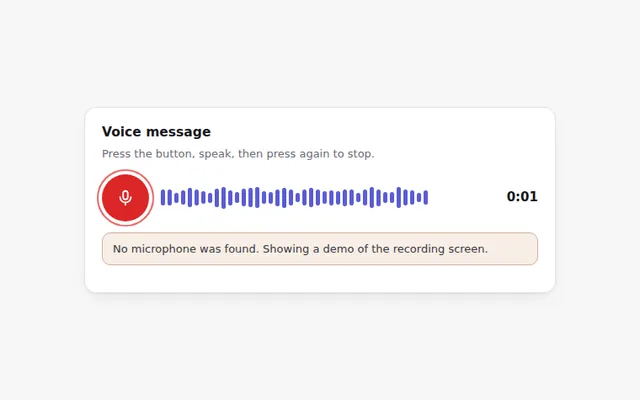
Record a voice message with live bars that follow your voice. Uses the real microphone when allowed, and explains clearly when it is not.
Audio Answer Player
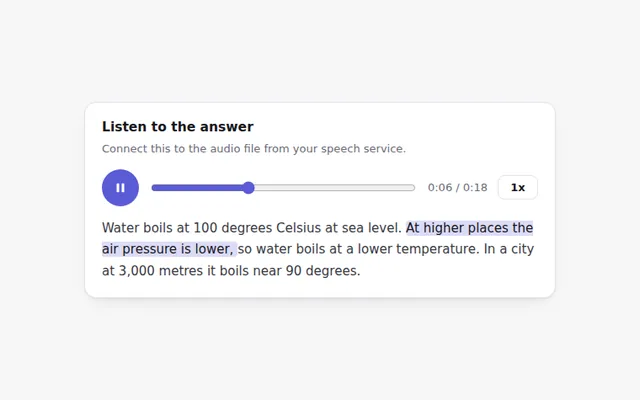
A compact player for spoken answers with play and pause, a seek bar, playback speed and the matching text highlighted as it plays.
Image Upload with Preview
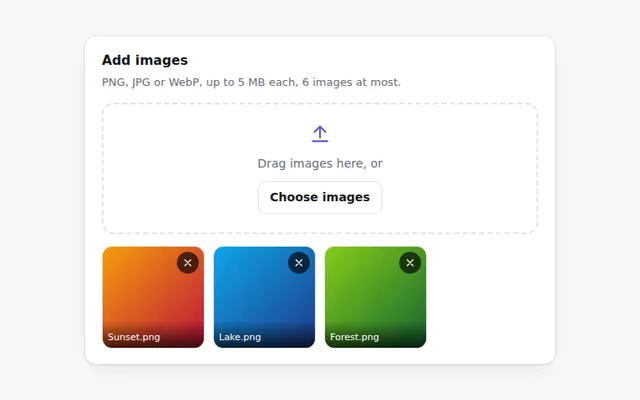
Add images by button or drag and drop and see thumbnails right away. Checks the file type and size and explains any problem.
Page Drop Zone with Upload Progress
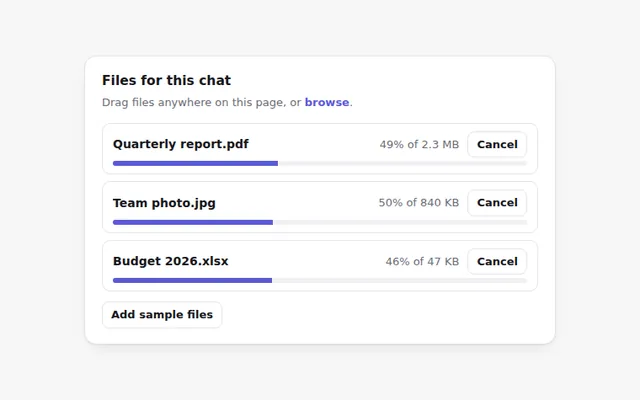
Drag files anywhere on the page to show a full screen drop area. Each file then uploads with its own progress bar and a cancel button.
Camera Photo Capture
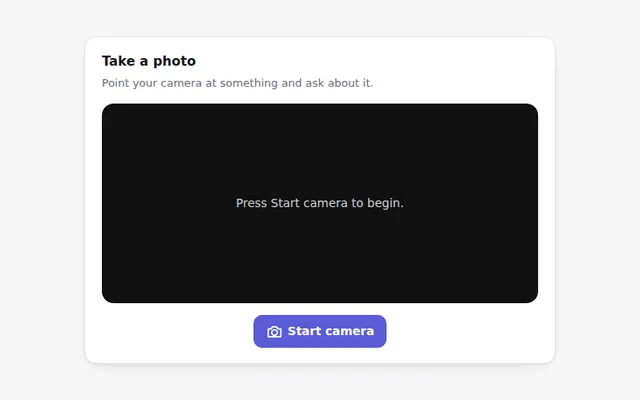
Take a photo with the device camera to ask the AI about it. Shows a live preview, a shutter button and retake, with a clear message if there is no camera.
Live Transcript
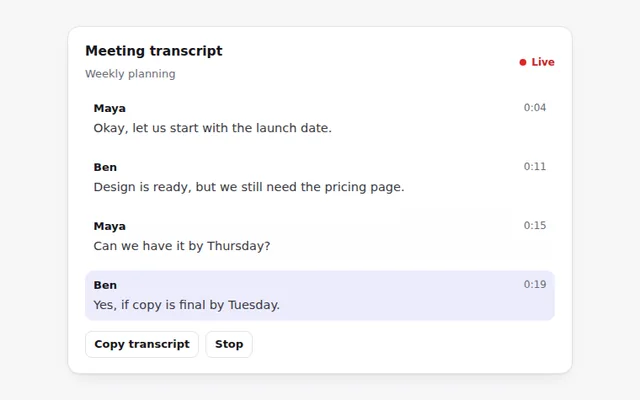
Captions that appear as people talk, with speaker names and times. The newest line is highlighted, and the full text can be copied.