The interface every AI app needs
Prompt boxes, thinking states, token meters, answer ratings and agent tools. Each component is one HTML file you can copy into any project. No library, no build step.
All 100 components are ready. Free for personal and business use.
ready to copy
Copy. Paste. Ship.
- 100components
- 1file each
- 0libraries needed
- MITlicense
All components
Open a component to try the live demo, switch between light and dark mode, and copy the code.
- Prompt Input
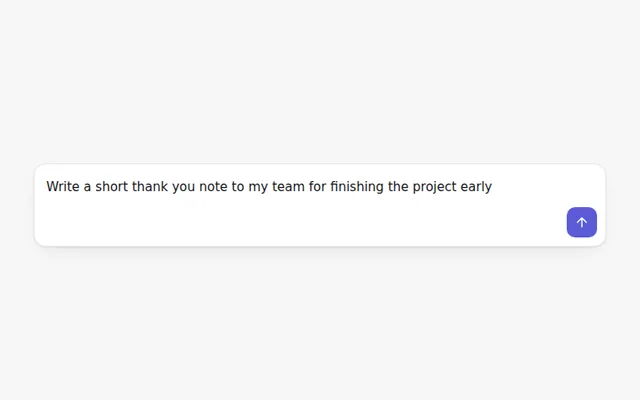
Basic Prompt Box
A clean prompt box. Enter sends, Shift and Enter adds a new line, and the send button stays off until there is text.
- Prompt Input
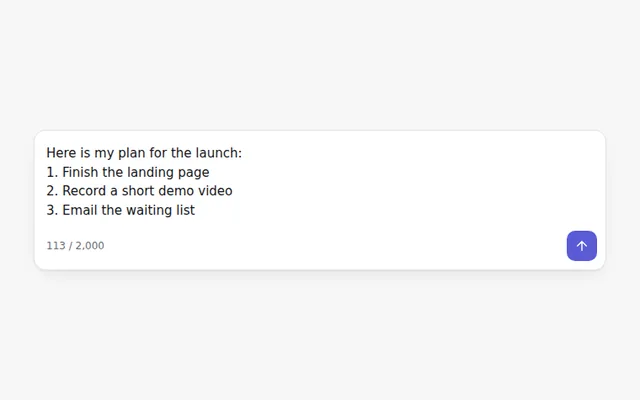
Auto-Growing Prompt
A prompt that grows as people type, stops at a set height and then scrolls. Shows a live character count.
- Prompt Input
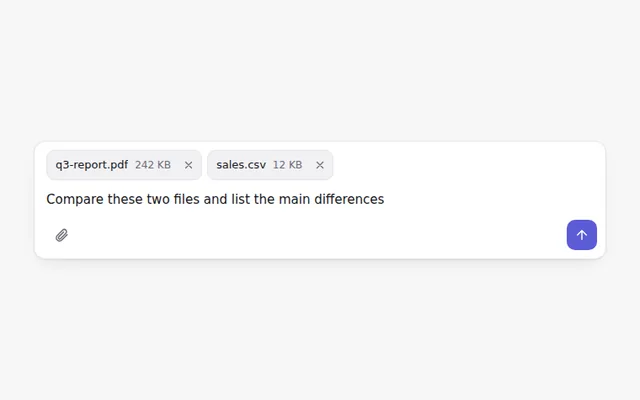
Prompt with File Attachments
Attach files with a button or by dragging them onto the box. Each file shows as a chip with its size and a remove button.
- Prompt Input
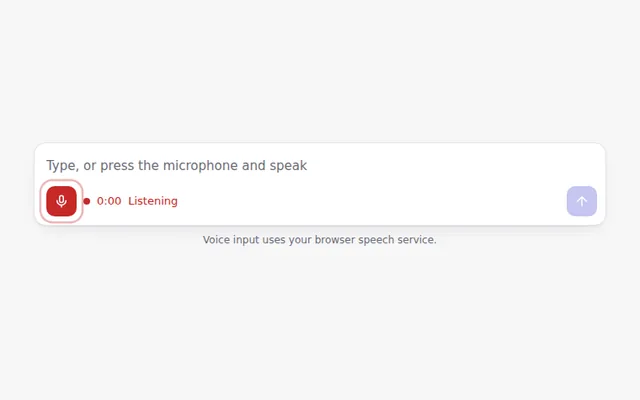
Prompt with Voice Input
A microphone button that turns speech into text when the browser supports it, with a pulsing record state and a timer.
- Prompt Input
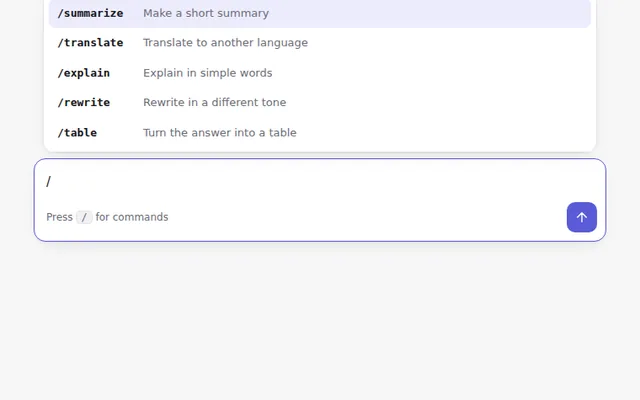
Prompt with Slash Commands
Type a slash to open a command menu. Use the arrow keys to move, Enter to pick, and Escape to close.
- Prompt Input
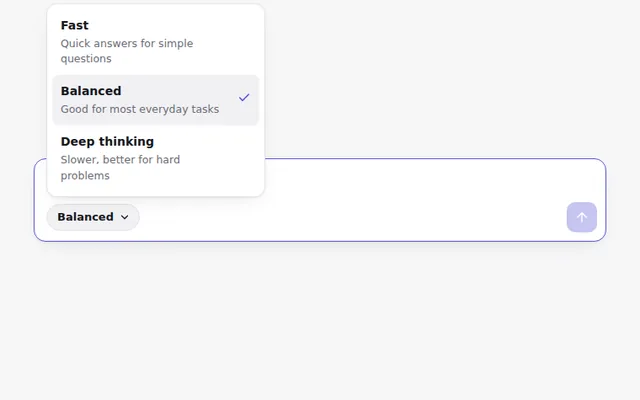
Prompt with Model Picker
A prompt box with a small menu to choose how the AI should answer: fast, balanced or deep thinking.
- Prompt Input
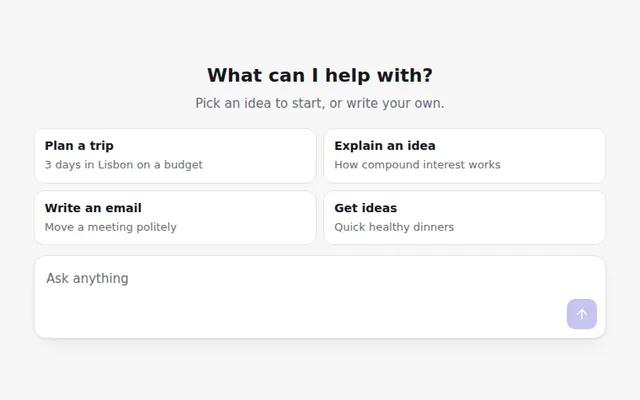
Prompt Suggestions
Starter ideas shown as buttons above an empty prompt. Clicking one fills the box so people can edit it before sending.
- Prompt Input
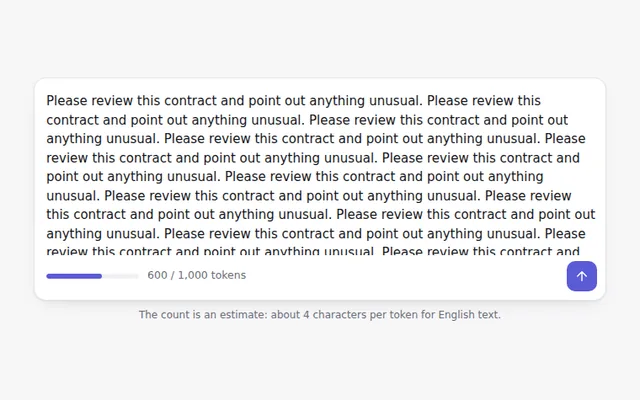
Prompt with Token Counter
Estimates how many tokens a prompt will use as people type, with a bar that turns orange and then red near the limit.
- Prompt Input
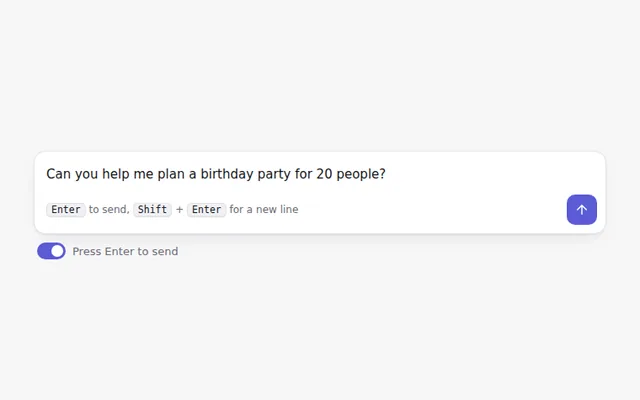
Prompt with Send Shortcut Setting
Lets people choose whether Enter sends the message or adds a new line, with a keyboard hint that updates to match.
- Prompt Input
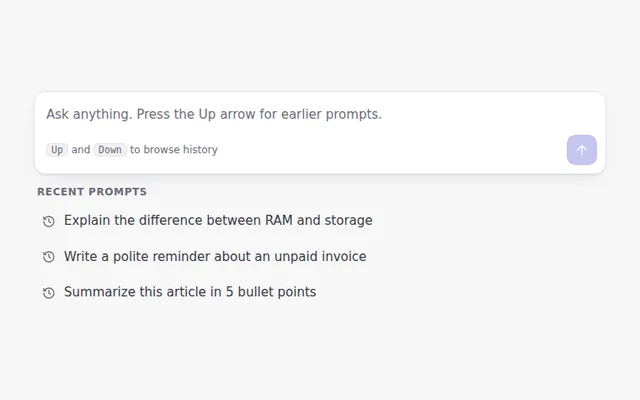
Prompt with History
Press the Up arrow in an empty box to bring back earlier prompts, like a terminal. Recent prompts also appear as a list.
- Thinking and Loading
Typing Dots
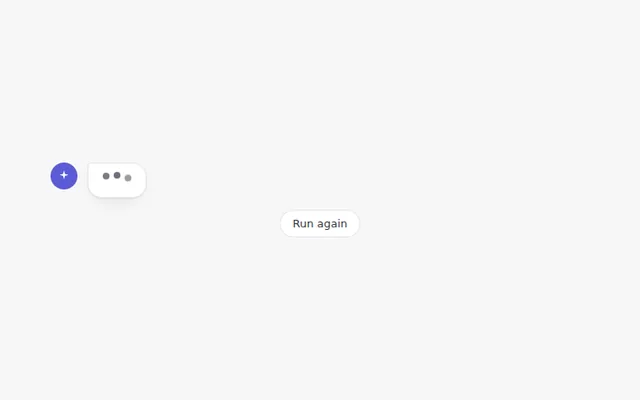
Three bouncing dots inside an answer bubble, the classic sign that the AI is writing a reply.
- Thinking and Loading
Thinking Shimmer
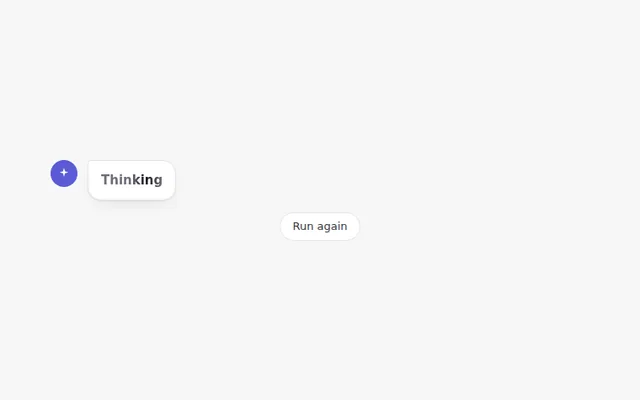
A soft light moves across the word Thinking while the AI works, then it changes to how long the thinking took.
- Thinking and Loading
Streaming Text
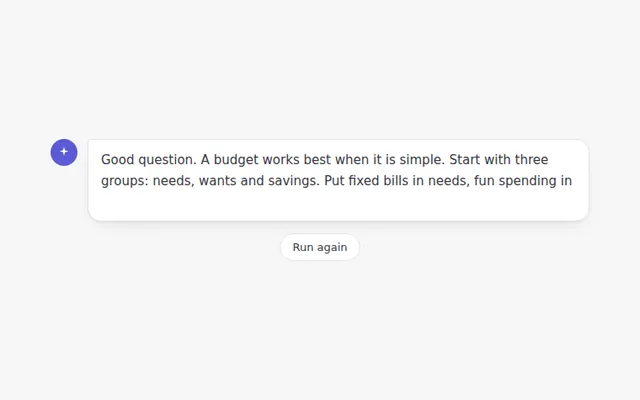
The answer appears word by word with a blinking cursor, the way most AI chat apps show a reply as it is written.
- Thinking and Loading
Reasoning Panel
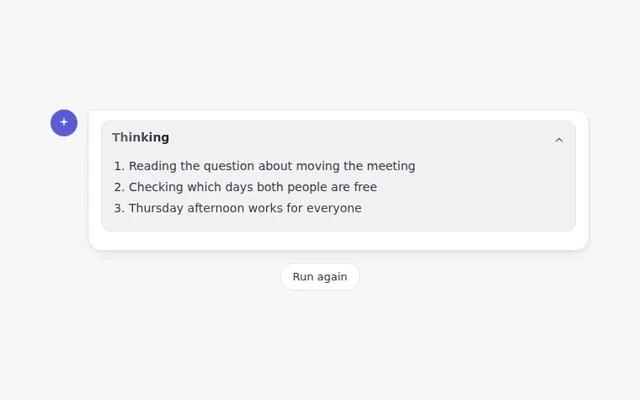
A panel that shows each thinking step while the AI works, then folds itself away with a summary you can open again.
- Thinking and Loading
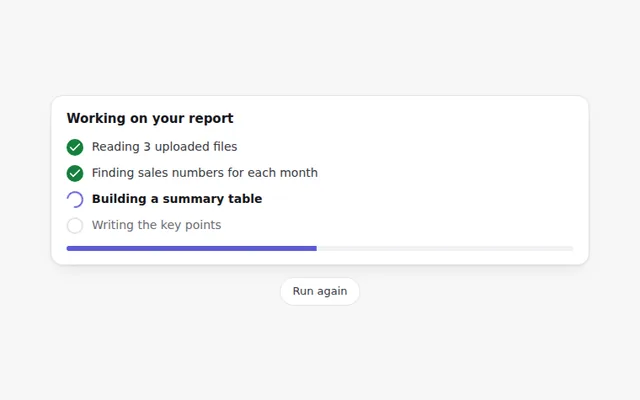
Agent Progress Steps
A checklist of what an AI agent is doing right now. Each step shows a spinner while it runs and a tick when it is done.
- Thinking and Loading
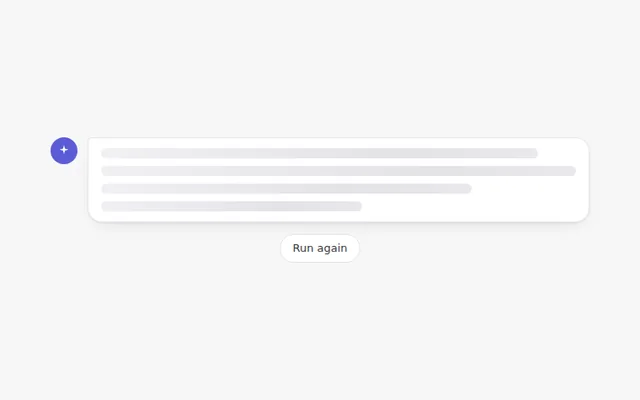
Skeleton Message
Grey placeholder lines with a moving shine that hold the space of the answer while it loads, so the page does not jump.
- Thinking and Loading
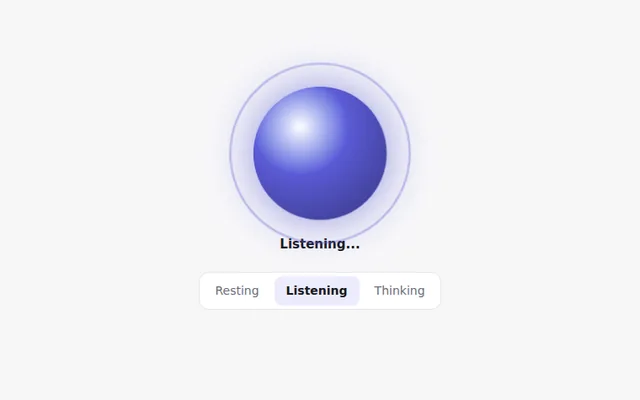
AI Orb
A glowing orb that shows what the assistant is doing: resting, listening or thinking. Great for voice and assistant screens.
- Thinking and Loading
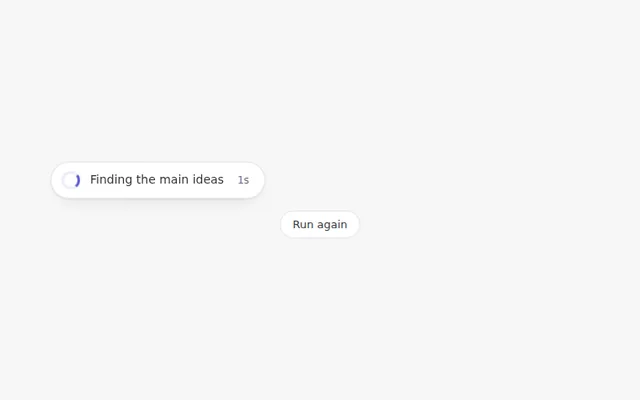
Spinner with Status Text
A small spinner with a line of text that changes as the work moves forward, so people know the AI has not frozen.
- Thinking and Loading
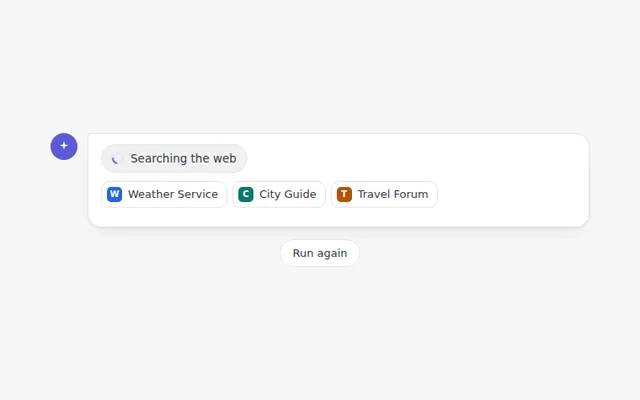
Web Search Indicator
Shows that the AI is searching the web, with sources popping in one by one, then a short summary of how many it found.
- Thinking and Loading
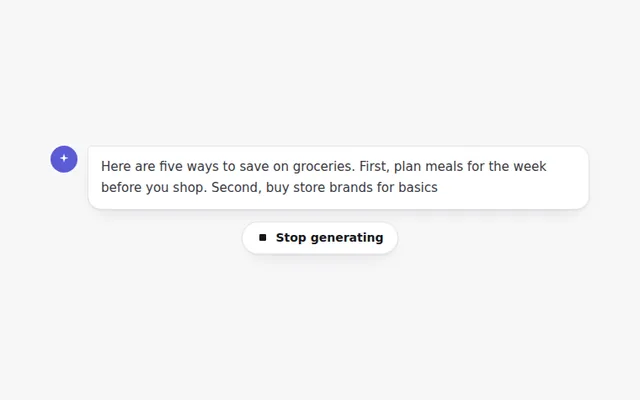
Stop Generating Button
A stop button that appears while the answer is being written. Stopping keeps what was written and offers to continue or try again.
- Chat Messages
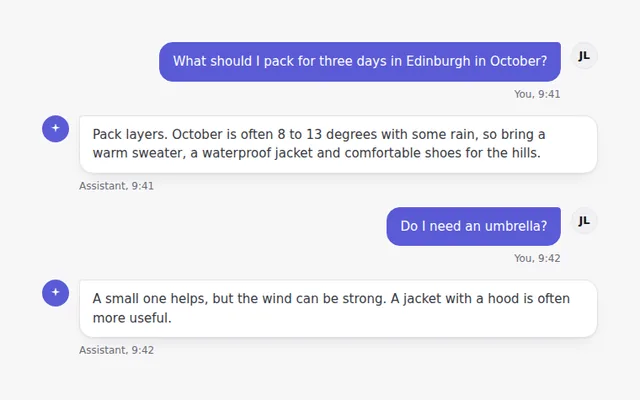
Chat Bubbles
A simple conversation with user and assistant bubbles, avatars and times. The user sits on the right in the brand color.
- Chat Messages
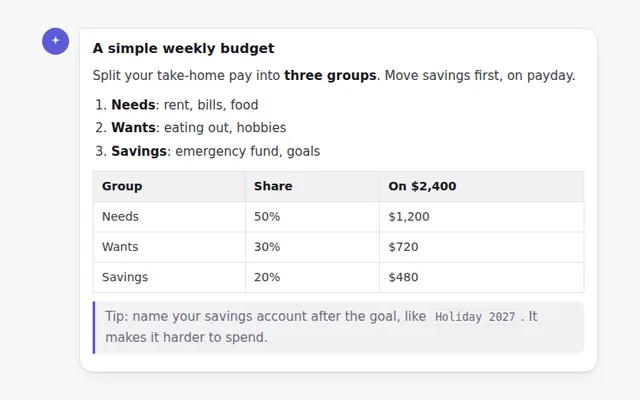
Formatted Answer
A styled answer with headings, lists, bold text, inline code, a quote and a table, ready for text your AI returns as Markdown.
- Chat Messages
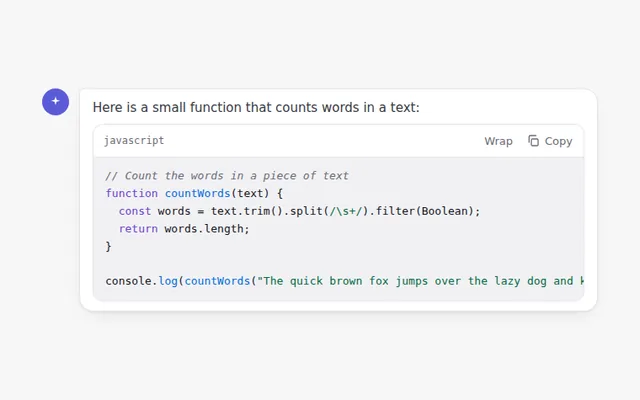
Code Block with Copy Button
A code block with a language label, a copy button that confirms when done, and a button to wrap long lines.
- Chat Messages
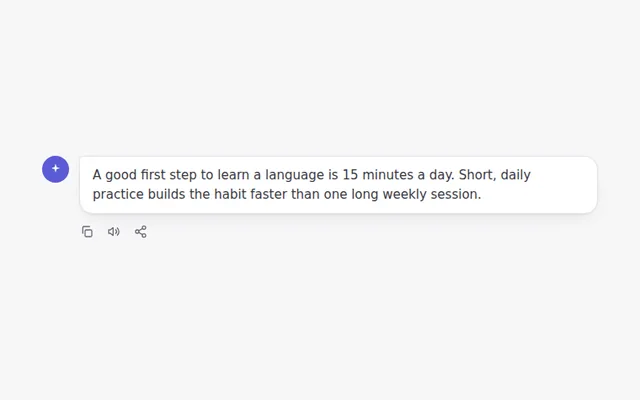
Message Action Bar
A row of actions under an answer: copy the text, read it aloud with the browser voice, and share it.
- Chat Messages
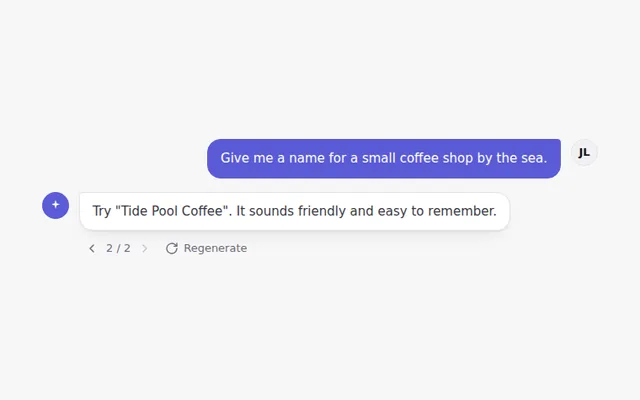
Answer Versions
Regenerate an answer and move between versions with small arrows showing 1 of 3, like popular chat apps do.
- Chat Messages
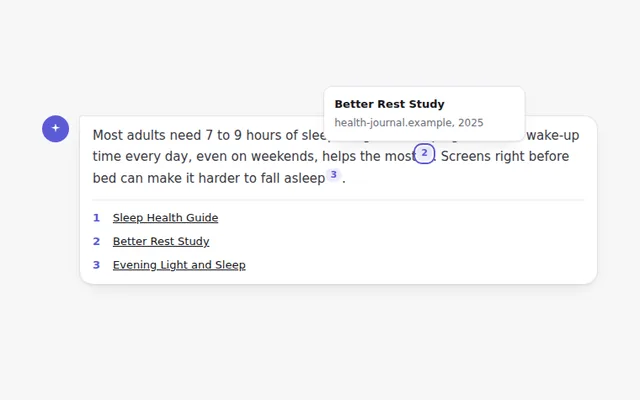
Inline Citations
Numbered source markers inside an answer. Hover or focus a number to see the source, and find the full list below.
- Chat Messages
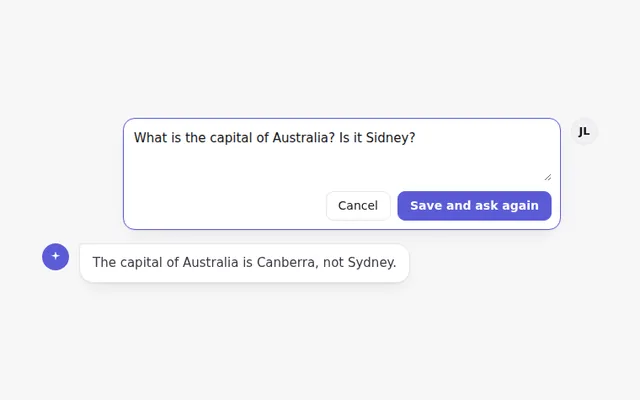
Editable User Message
An edit button on the user message turns it into a text box with Save and Cancel, so people can fix a question and ask again.
- Chat Messages
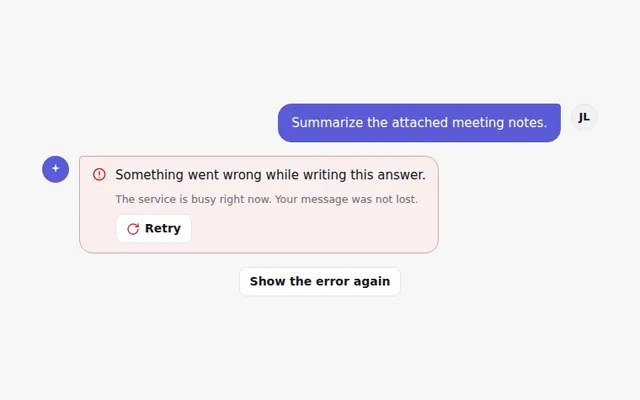
Error Message with Retry
A clear error in the chat when an answer fails, with a Retry button that shows progress and then the answer.
- Chat Messages
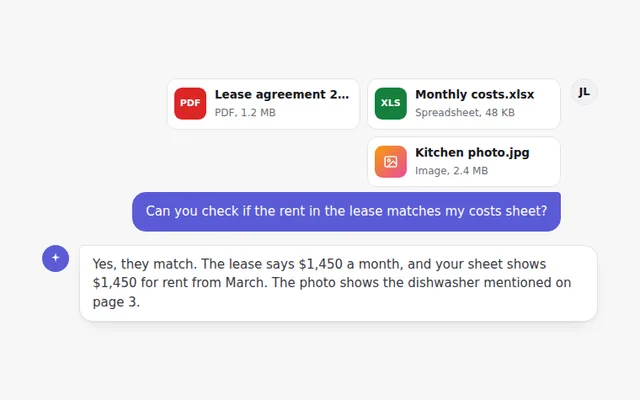
Message with Attached Files
A user message with attached file cards, showing the file type, name and size, followed by the assistant's reply.
- Chat Messages
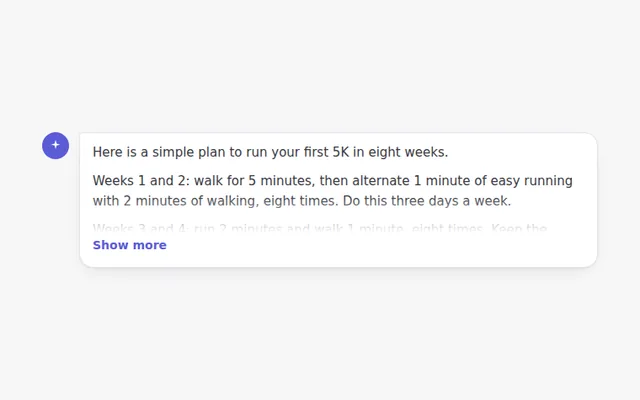
Long Answer with Show More
Long answers fold after a few lines with a soft fade and a Show more button, so the chat stays easy to scan.
- Answer Feedback
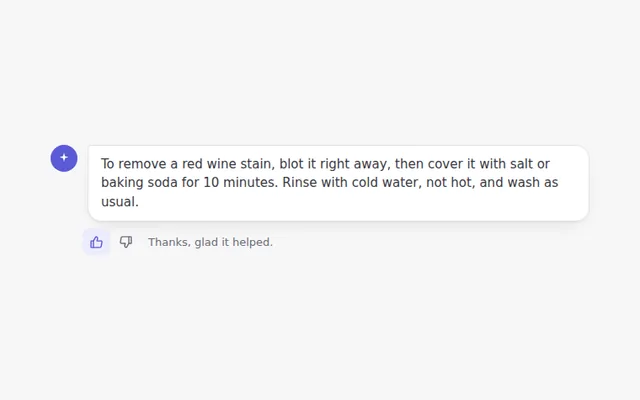
Thumbs Up and Down
Two small buttons under an answer. Pick one to rate it, pick it again to undo, and see a short thank you.
- Answer Feedback
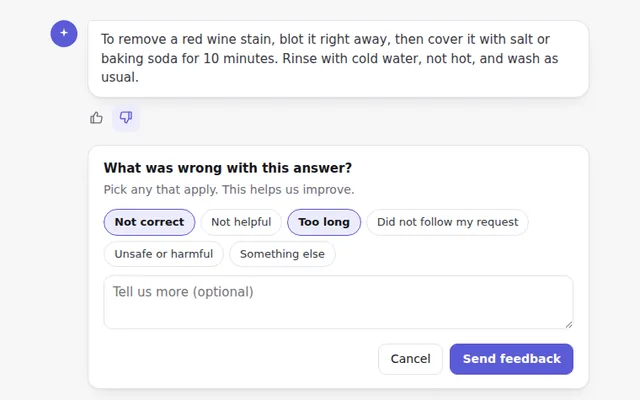
Thumbs Down with Reasons
When someone marks an answer as bad, a small panel asks why, with quick reason buttons and an optional comment.
- Answer Feedback
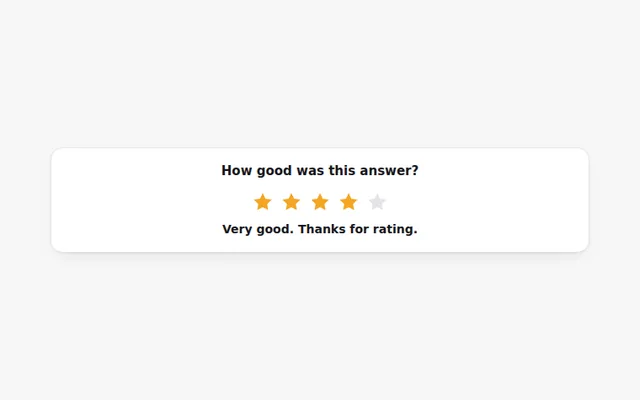
Star Rating
Rate an answer from one to five stars with the mouse or keyboard. Each level shows a word, like Good or Excellent.
- Answer Feedback
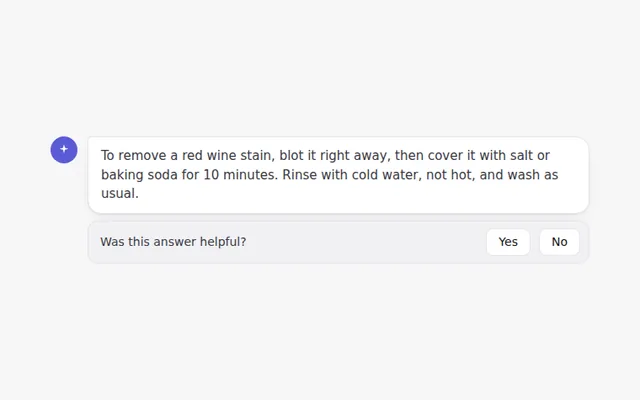
Was This Helpful Bar
A short question at the end of an answer with Yes and No buttons. It turns into a thank you once someone answers.
- Answer Feedback
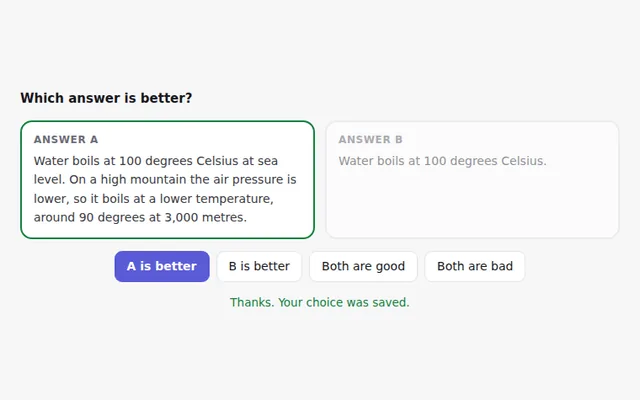
Compare Two Answers
Two answers side by side so people can pick the better one, or say both are good or both are bad. Useful for testing models.
- Answer Feedback
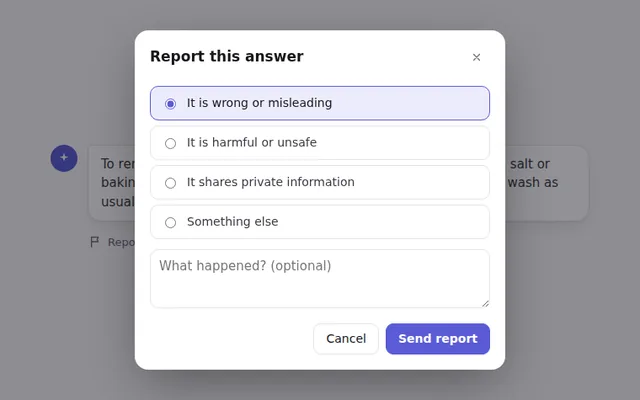
Report a Problem Dialog
A report button opens a dialog to flag an answer, with categories and details. It traps focus and closes with Escape.
- Answer Feedback
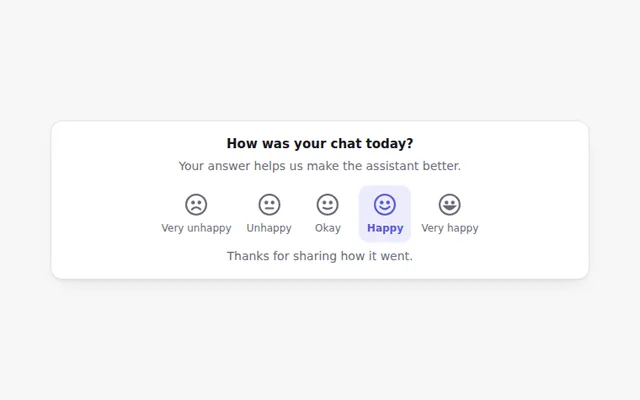
Satisfaction Scale
Five faces from very unhappy to very happy. A quick way to ask how a chat went, drawn in SVG so it looks the same everywhere.
- Answer Feedback
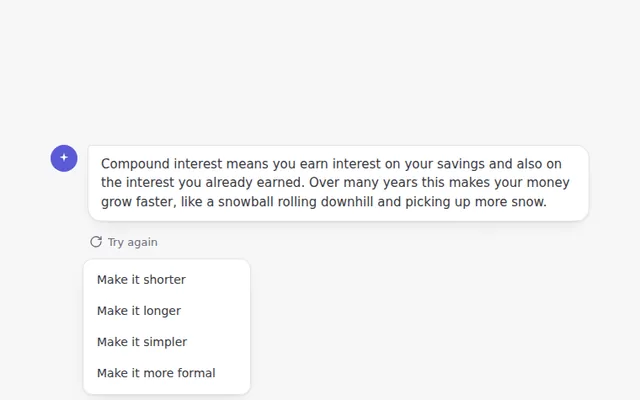
Rewrite Options Menu
A Try again button with a menu to change the answer: shorter, longer, simpler or more formal. The answer updates in place.
- Answer Feedback
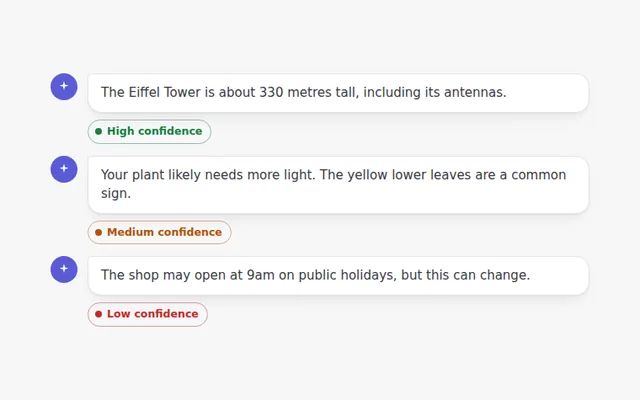
Confidence Badge
A small badge that tells people how sure the AI is about an answer, with a short explanation and a reminder to check sources.
- Answer Feedback
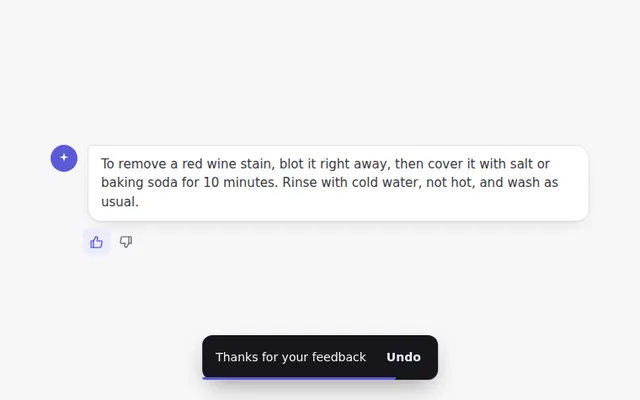
Feedback Toast with Undo
After someone rates an answer, a small message slides up to confirm it, with an Undo button for a few seconds.
- Tokens and Usage
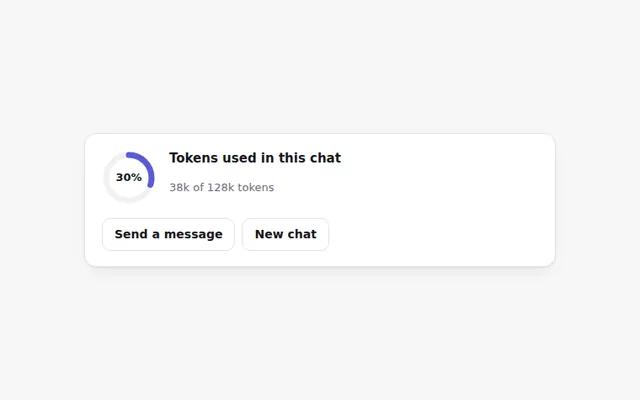
Token Ring Meter
A small ring that fills as a chat uses up its token budget. It turns orange near the limit and red when full, with an exact count on hover.
- Tokens and Usage
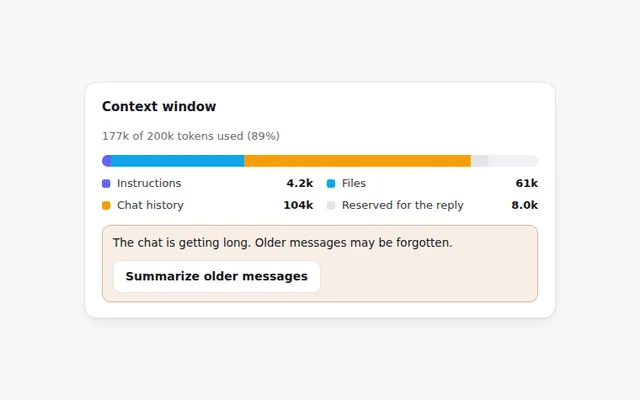
Context Window Bar
A bar that shows what fills the AI's memory for this chat: instructions, files, chat history and room left for the reply.
- Tokens and Usage
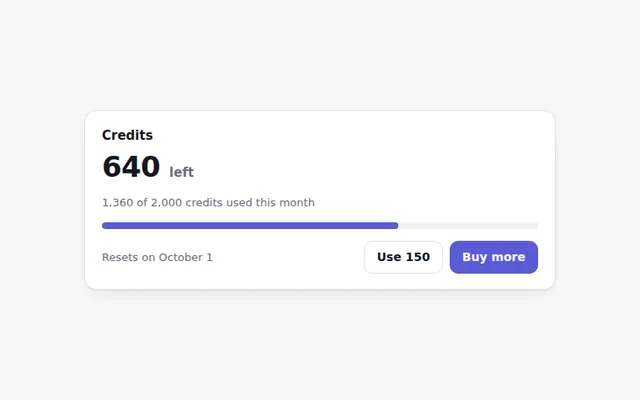
Credits Remaining Card
Shows how many credits are left this month, when they reset, and a button to buy more. The bar changes color as credits run low.
- Tokens and Usage
Rate Limit Banner
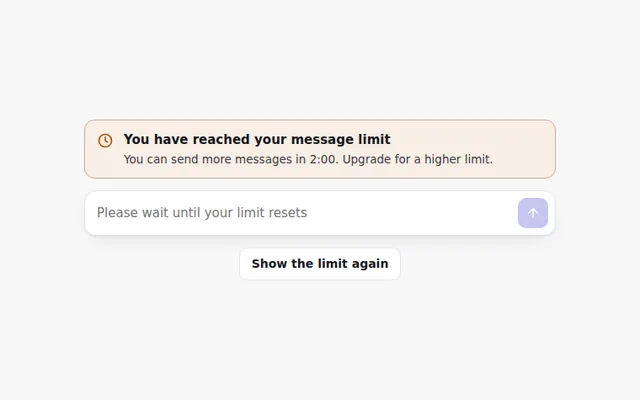
A clear banner when someone hits their message limit, with a live countdown to when they can send again and the prompt box turned off.
- Tokens and Usage
Cost per Message
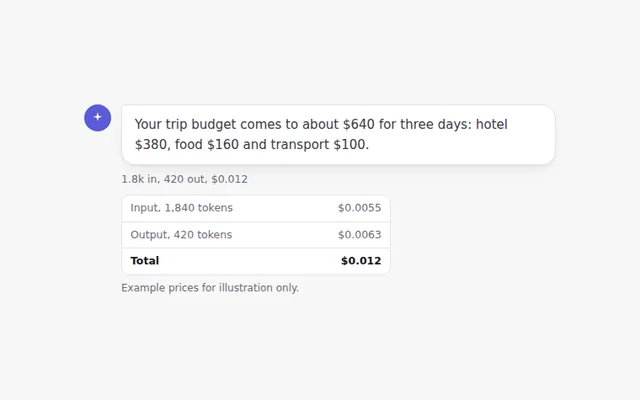
A small line under each answer showing tokens in and out and what the message cost. Click it to see the full breakdown.
- Tokens and Usage
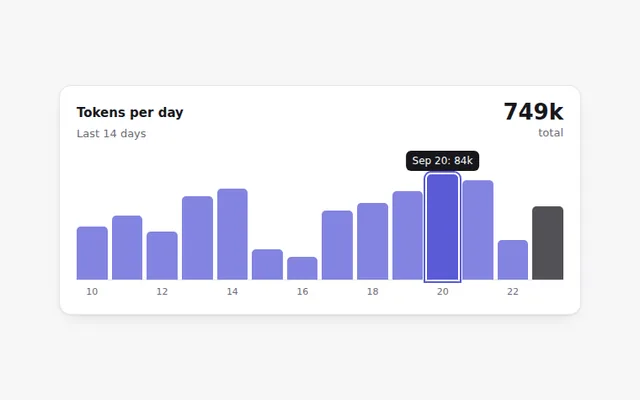
Daily Usage Chart
A small bar chart of tokens used each day for two weeks. Hover or use the Tab key to read each day's exact number.
- Tokens and Usage
Upgrade Plan Banner
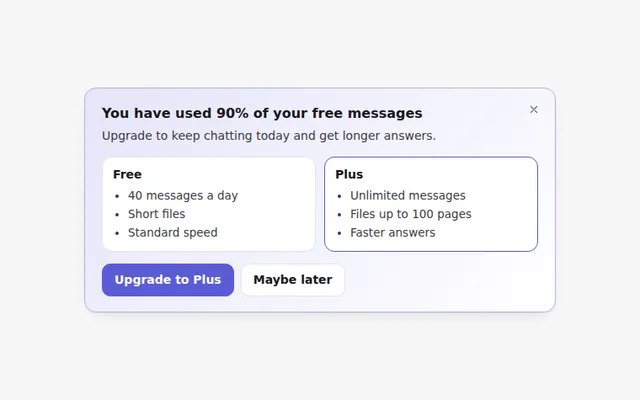
A friendly banner that appears when someone is close to their free limit, comparing free and paid limits. It can be closed.
- Tokens and Usage
Model Price Calculator
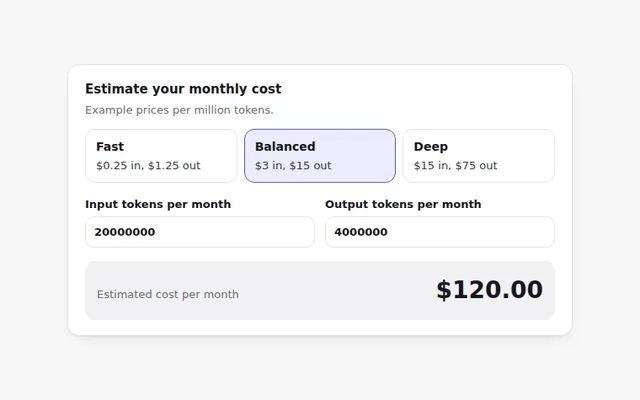
Pick a model and enter expected tokens to estimate the monthly cost. Uses example prices that you replace with your own.
- Tokens and Usage
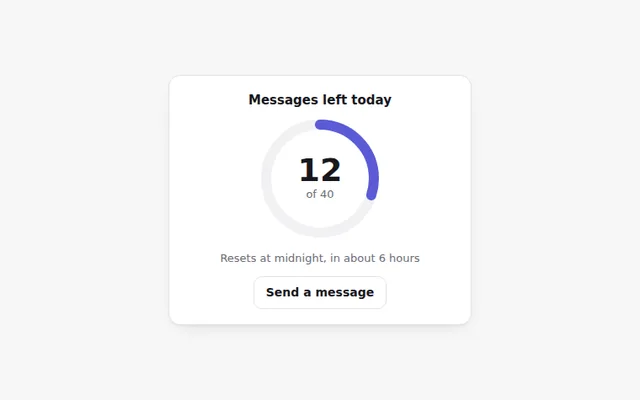
Messages Left Today
A ring that counts down the messages left today, with the reset time. Useful for free plans with a daily limit.
- Tokens and Usage
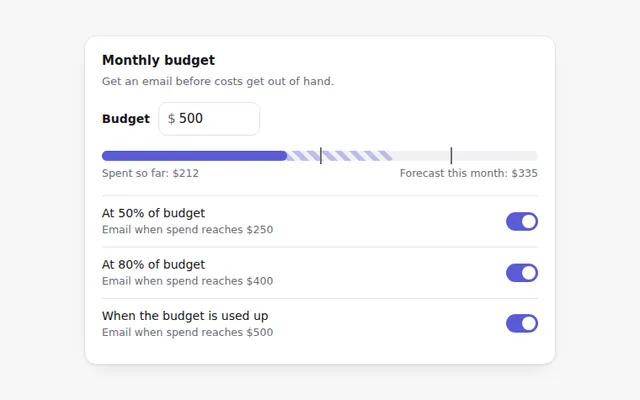
Spending Alerts
Set a monthly budget and choose when to get an email: at half, most or all of the budget. Shows spend so far and a forecast.
- Model and Settings
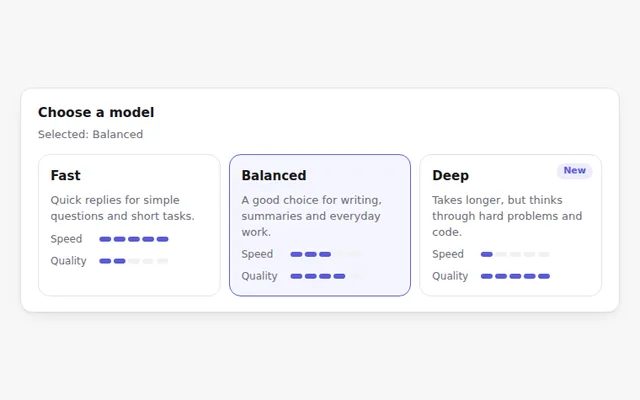
Model Selection Cards
Choose a model from cards that compare speed and quality with small meters. Works with arrow keys like a radio group.
- Model and Settings
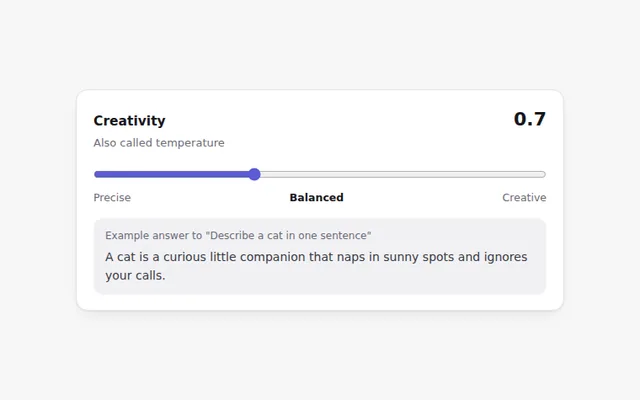
Creativity Slider
A slider for the model temperature with plain labels from Precise to Creative, a live value, and a sample line that shows the effect.
- Model and Settings
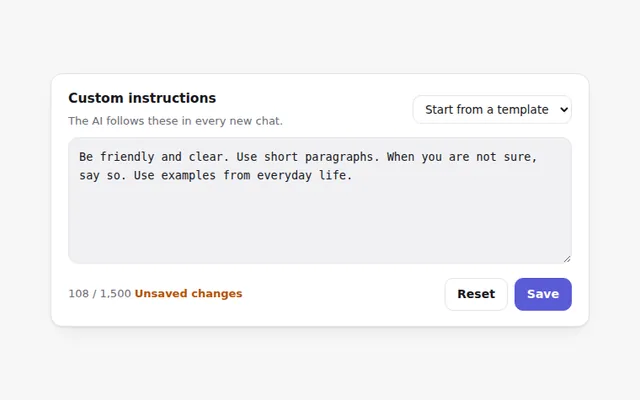
System Prompt Editor
Edit the instructions the AI follows in every chat. Includes ready-made starters, a character count, and Save only when something changed.
- Model and Settings
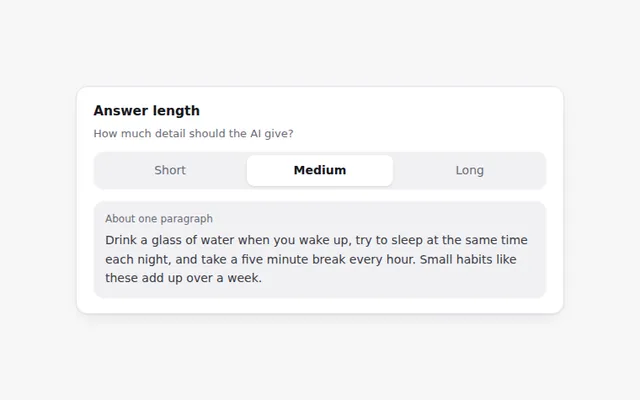
Answer Length Control
A three-way switch for short, medium or long answers, with a preview that shows how much text each choice gives.
- Model and Settings
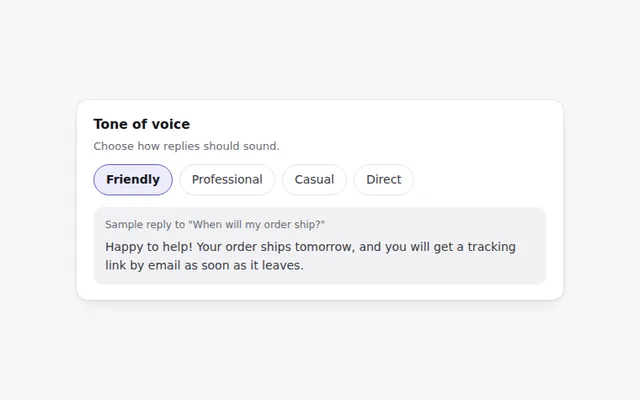
Tone Selector
Pick how the AI should sound: friendly, professional, casual or direct. A sample reply updates so people can hear the difference.
- Model and Settings
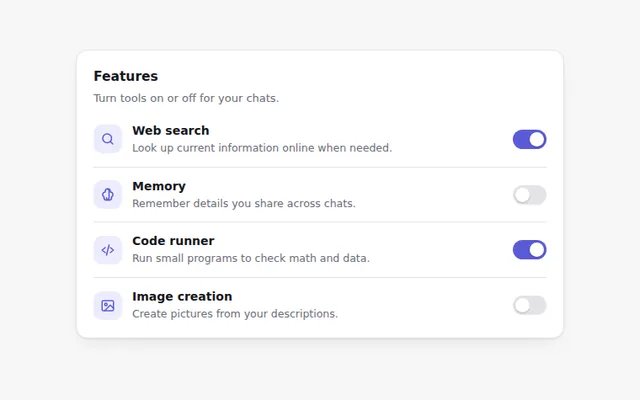
Feature Toggles
A settings list of switches for AI features like web search, memory and code running, each with a short explanation.
- Model and Settings
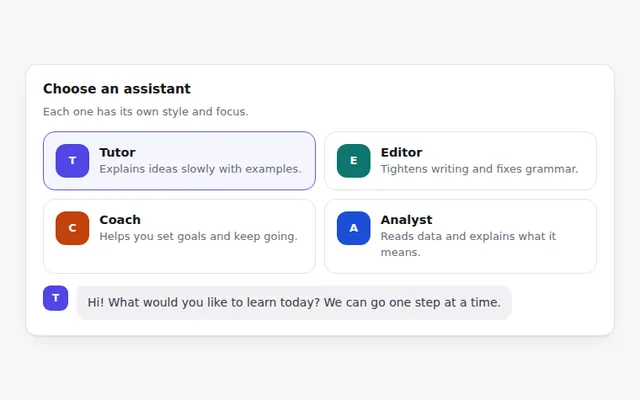
Assistant Persona Cards
Cards for different assistant roles, like tutor, editor or coach. Picking one changes how the assistant greets you.
- Model and Settings
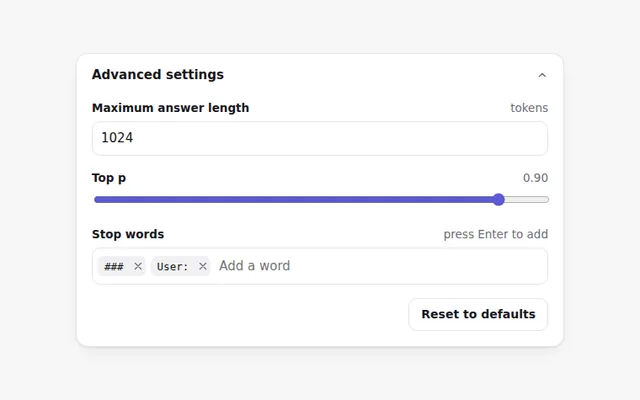
Advanced Parameters Panel
A folding panel for power users: maximum answer length, top p, and stop words you can add and remove, with a reset to defaults.
- Model and Settings
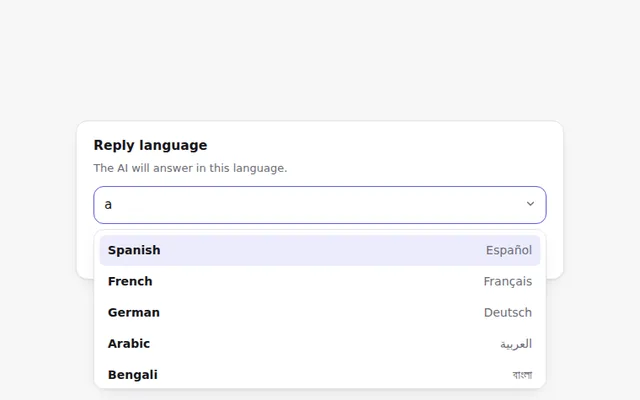
Reply Language Picker
A searchable list to choose the language for answers. Shows each language in its own script and supports right-to-left text.
- Model and Settings
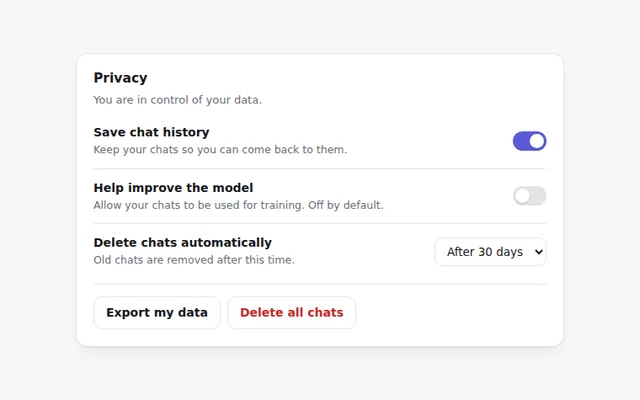
Privacy Controls
Clear privacy settings for an AI app: save chat history, allow chats to improve the model, auto-delete, plus export and delete with a confirm step.
- Chat Layouts
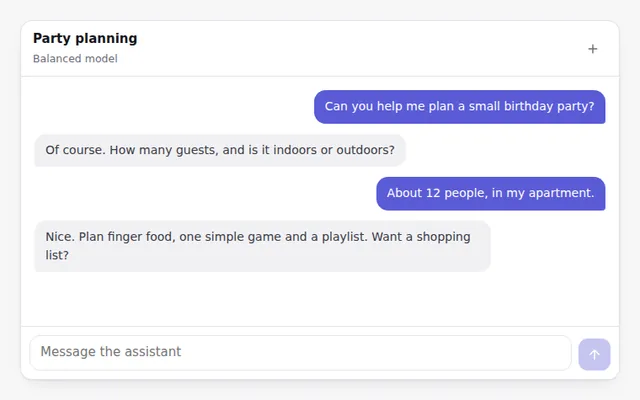
Full Chat Window
A complete chat screen with a header, scrolling messages and a prompt box at the bottom. Replies stream in, and the view follows along.
- Chat Layouts
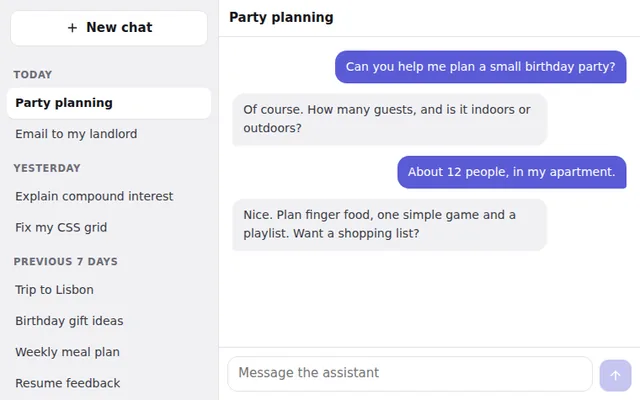
Chat Sidebar
A sidebar with past chats grouped by date, a New chat button and the current chat highlighted. On phones it slides in from a menu button.
- Chat Layouts
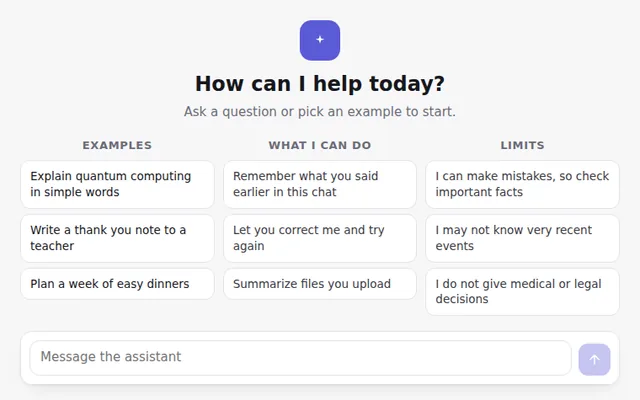
Empty Chat Welcome Screen
The first screen of a new chat: a greeting, example prompts, what the assistant can do and its limits, with the prompt box ready below.
- Chat Layouts
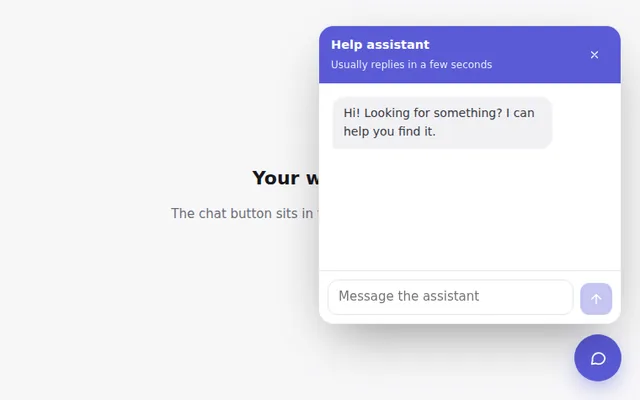
Floating Chat Widget
A round chat button in the corner that opens a small chat panel, with an unread badge. Escape or the close button hides it again.
- Chat Layouts
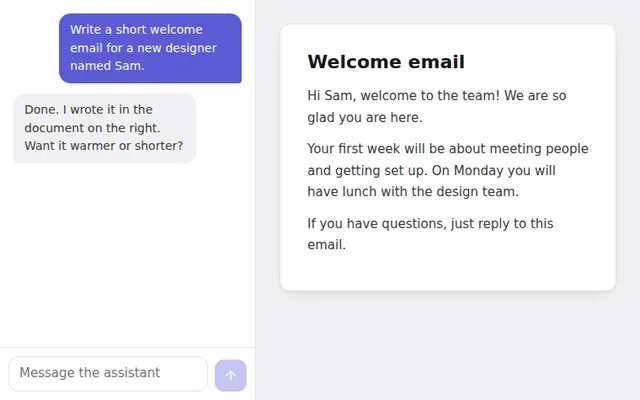
Split View: Chat and Document
Chat on one side and a live document on the other, the layout used by AI writing tools. On phones it switches to two tabs.
- Chat Layouts
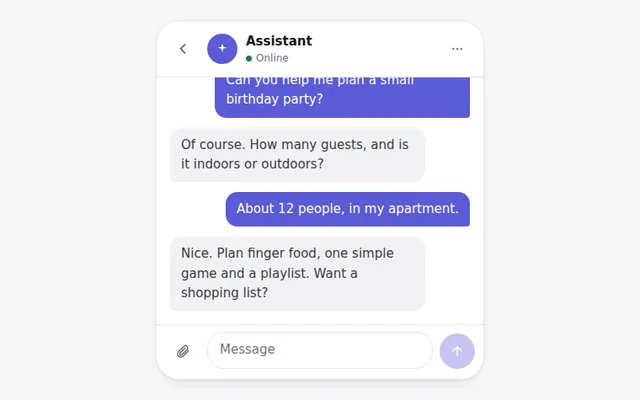
Mobile Chat Screen
A phone-sized chat with a back button, assistant name and status, messages, and a prompt bar with an attach button, sized for thumbs.
- Chat Layouts
Conversation Search
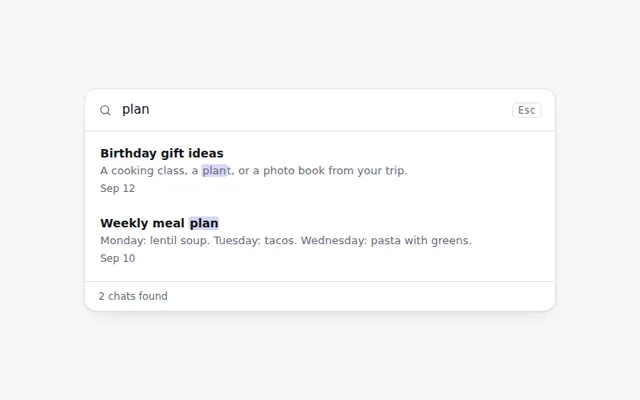
Search through past chats as you type. Matching words are highlighted, and a friendly message appears when nothing is found.
- Chat Layouts
Chat List Item Menu
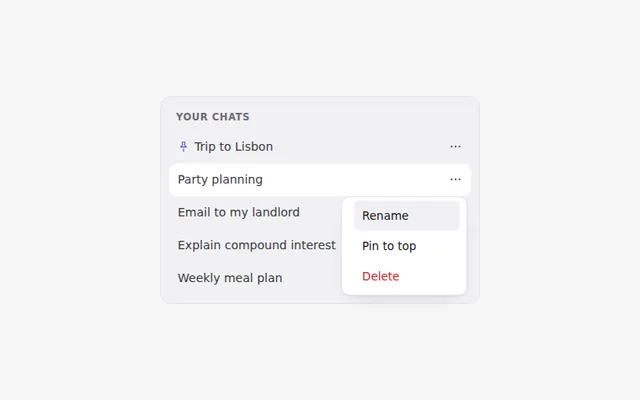
Each chat in the list has a menu to rename it in place, pin it to the top, or delete it with an undo option.
- Chat Layouts
Sidebar with Pinned Chats and Folders
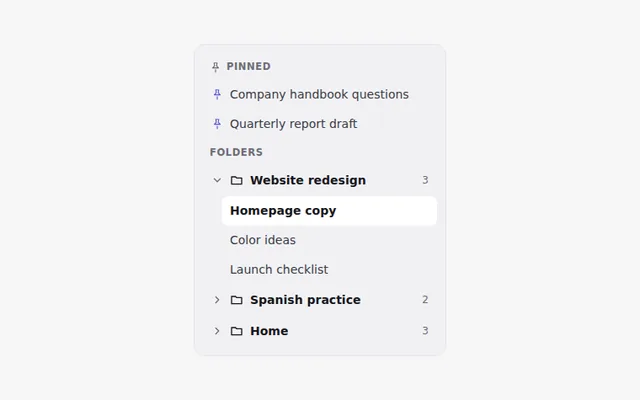
A chat sidebar with a pinned section and folders you can open and close, like projects. It remembers which folders are open.
- Chat Layouts
Share Conversation Dialog
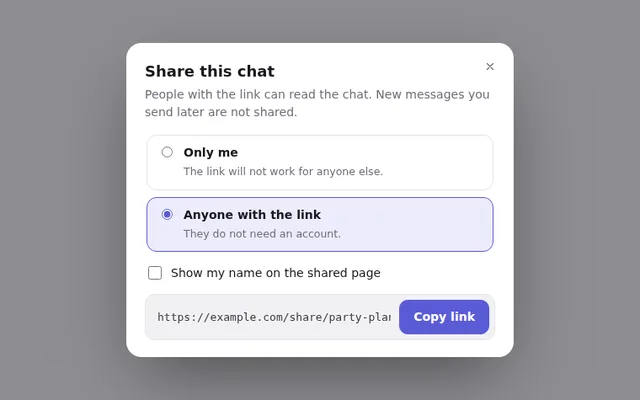
Share a chat with a link. Choose who can see it, whether to show your name, then copy the link with one click.
- Agents and Tools
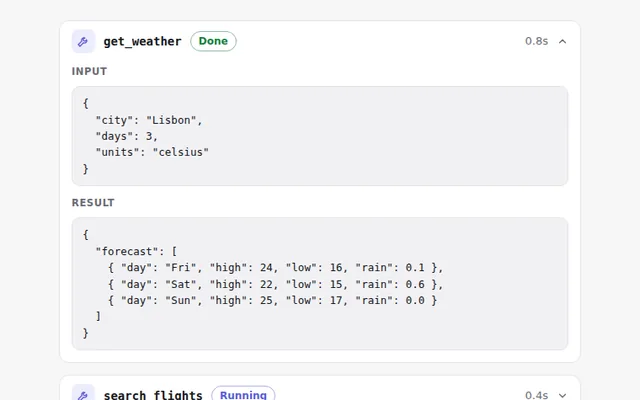
Tool Call Card
Shows that the AI used a tool, with its name, status and time. Open it to see the exact input and the result it got back.
- Agents and Tools
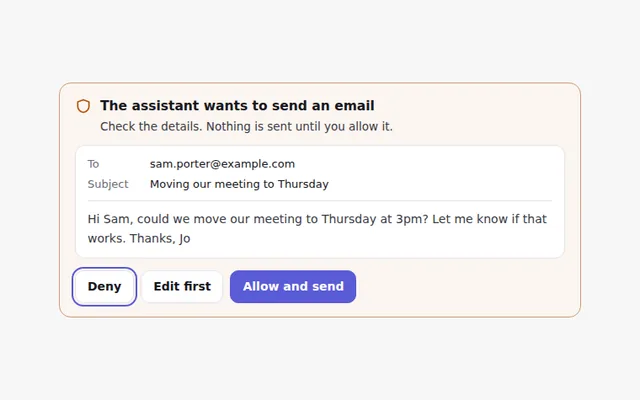
Action Approval Request
Before an agent does something important, like sending an email, it shows exactly what it will do and waits for Allow or Deny.
- Agents and Tools
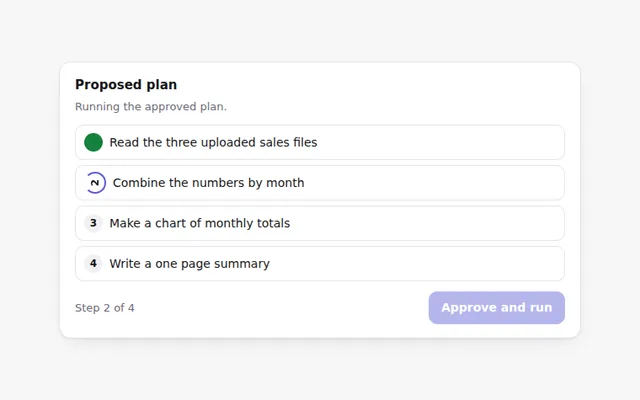
Editable Task Plan
The agent proposes a step by step plan before it starts. People can reorder, edit or remove steps, then approve the plan to run it.
- Agents and Tools
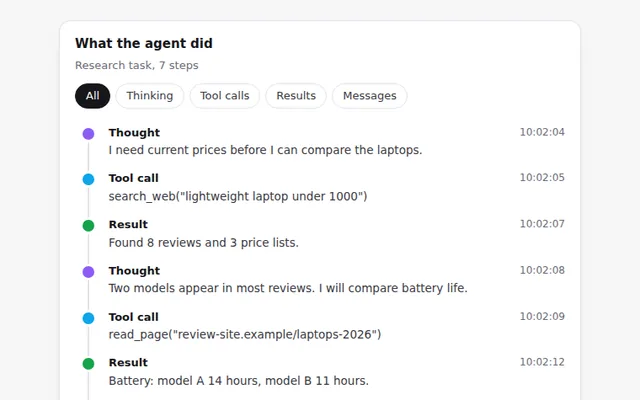
Agent Activity Timeline
A timeline of everything an agent did: its thinking, tool calls, results and messages, with times and a filter by type.
- Agents and Tools
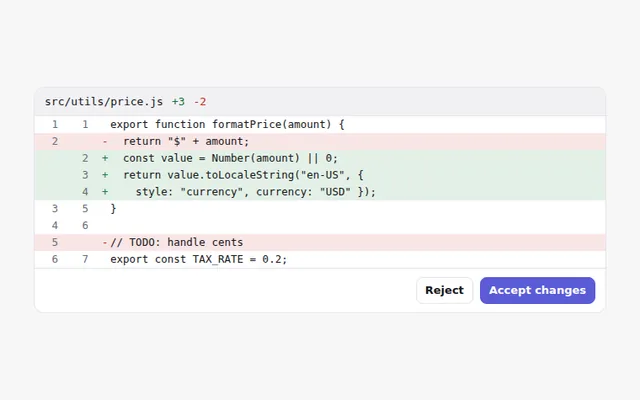
File Change Preview
Shows the changes an AI wants to make to a file, with removed lines in red and added lines in green, and buttons to accept or reject.
- Agents and Tools
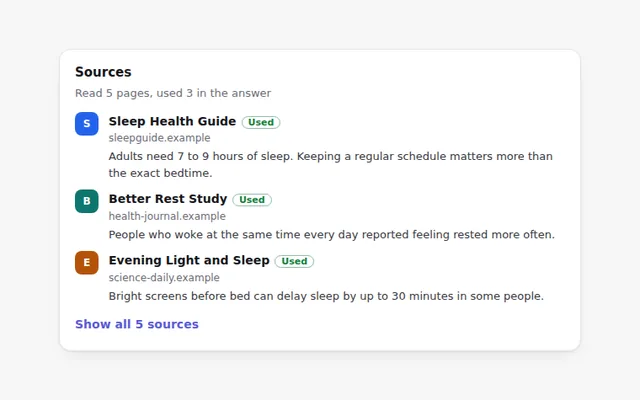
Web Results Card
A card listing the web pages an AI read, with title, site and a short excerpt. Pages it used in the answer are marked.
- Agents and Tools
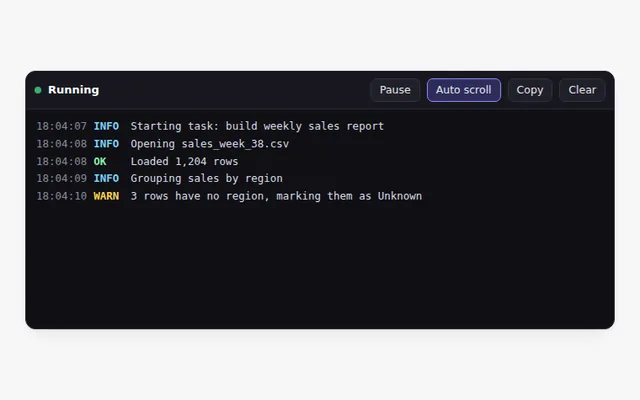
Agent Run Log
A terminal style log that streams what an agent is doing, with colored levels, a pause button, auto scroll and copy.
- Agents and Tools
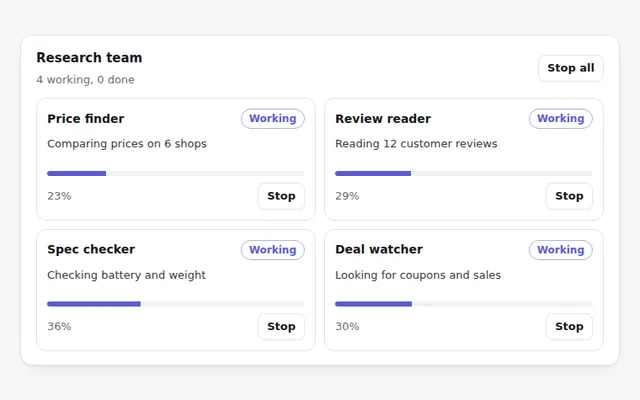
Parallel Agents Status
A grid of helper agents working at the same time, each with its own task, progress and status, and a button to stop any one of them.
- Agents and Tools
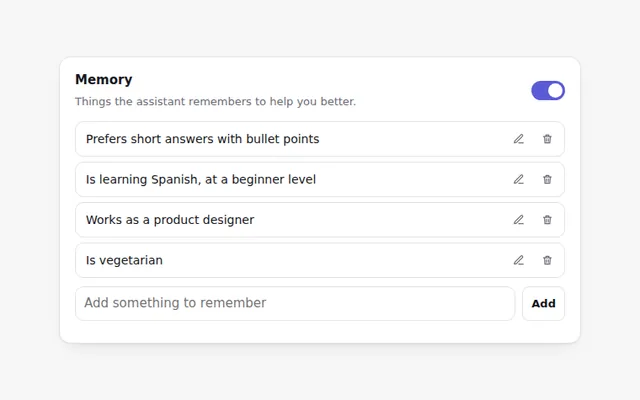
AI Memory Manager
A list of things the assistant remembers about someone, with edit and delete for each item, a way to add one, and a switch to turn memory off.
- Agents and Tools
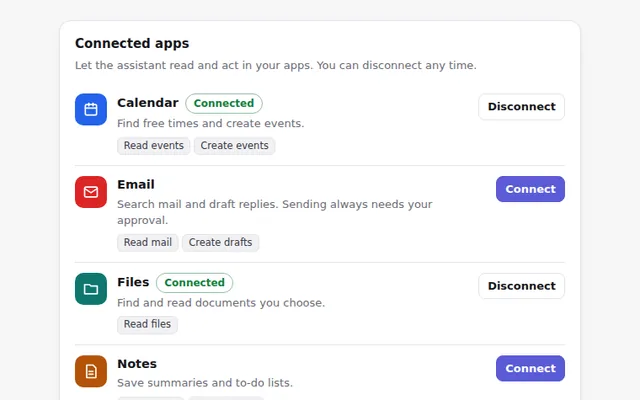
App Connectors List
A list of apps the AI can connect to, like calendar, email and files. Each shows what it can access, with Connect and Disconnect buttons.
- Voice and Media
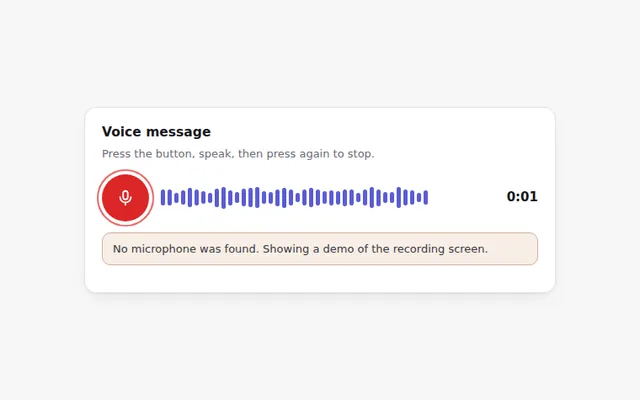
Voice Recorder with Waveform
Record a voice message with live bars that follow your voice. Uses the real microphone when allowed, and explains clearly when it is not.
- Voice and Media
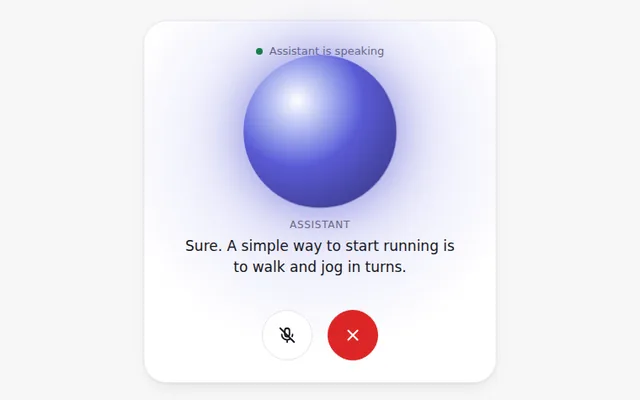
Voice Mode Screen
A full voice conversation screen with a glowing circle that reacts while the AI speaks, live captions, and mute and end buttons.
- Voice and Media
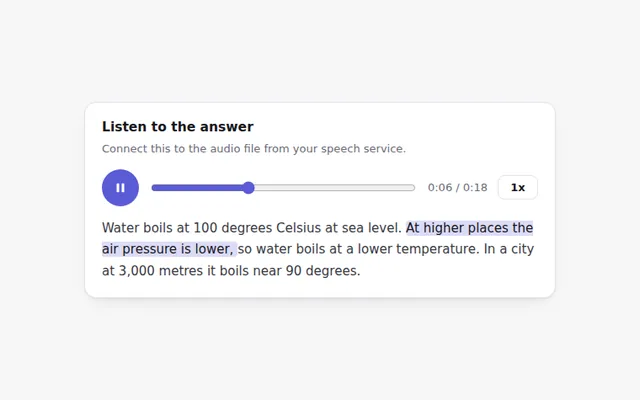
Audio Answer Player
A compact player for spoken answers with play and pause, a seek bar, playback speed and the matching text highlighted as it plays.
- Voice and Media
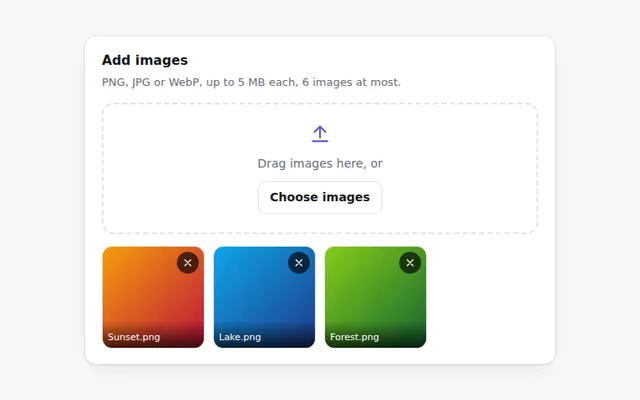
Image Upload with Preview
Add images by button or drag and drop and see thumbnails right away. Checks the file type and size and explains any problem.
- Voice and Media
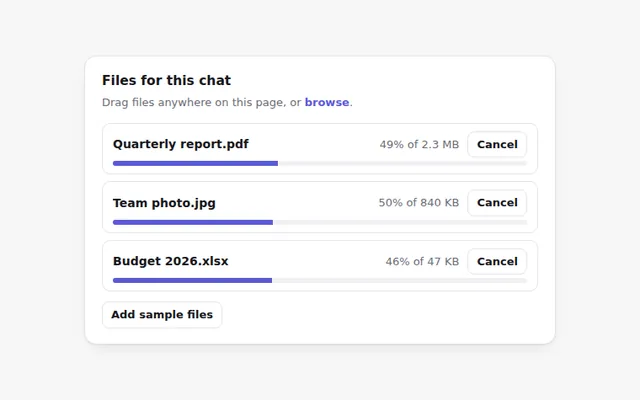
Page Drop Zone with Upload Progress
Drag files anywhere on the page to show a full screen drop area. Each file then uploads with its own progress bar and a cancel button.
- Voice and Media
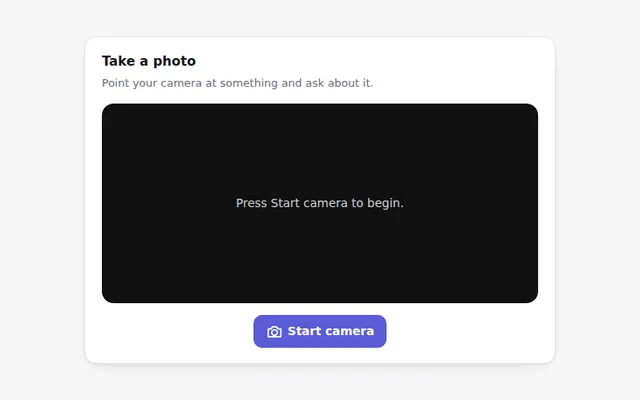
Camera Photo Capture
Take a photo with the device camera to ask the AI about it. Shows a live preview, a shutter button and retake, with a clear message if there is no camera.
- Voice and Media
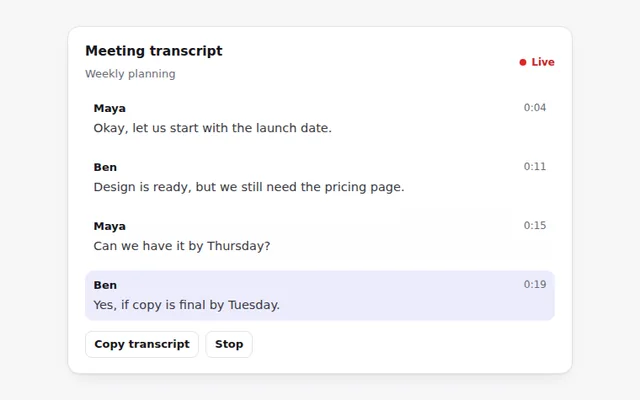
Live Transcript
Captions that appear as people talk, with speaker names and times. The newest line is highlighted, and the full text can be copied.
- Voice and Media
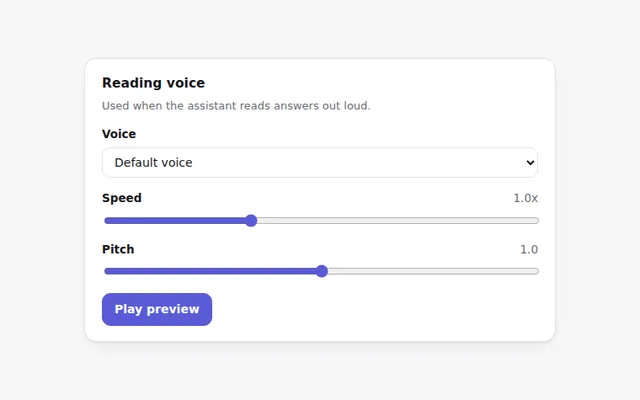
Voice and Speech Settings
Pick a reading voice from the ones in the browser, set the speed and pitch, and hear a preview. Shows a notice when no voices are available.
- Voice and Media
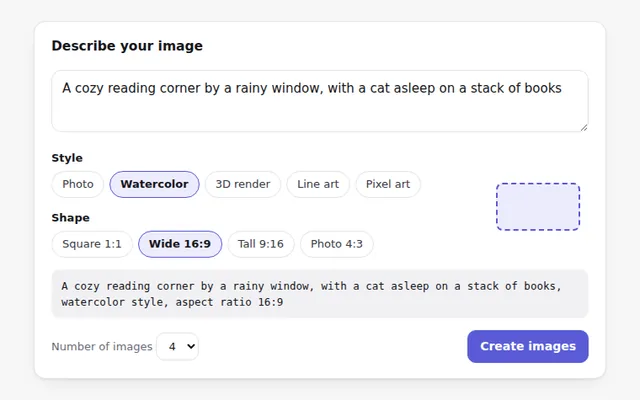
Image Prompt Builder
Write a prompt for an image and pick a style, shape and number of images. A frame shows the chosen shape, and the final prompt updates live.
- Voice and Media
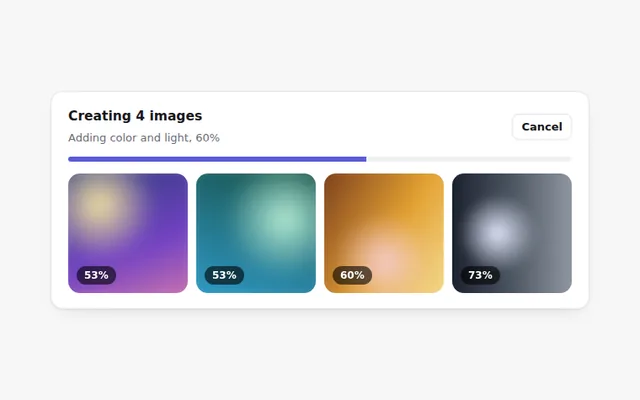
Image Generation Progress
Shows images being created: tiles start blurry and sharpen as progress grows, with a cancel button, then download and upscale actions.
- Trust and Onboarding
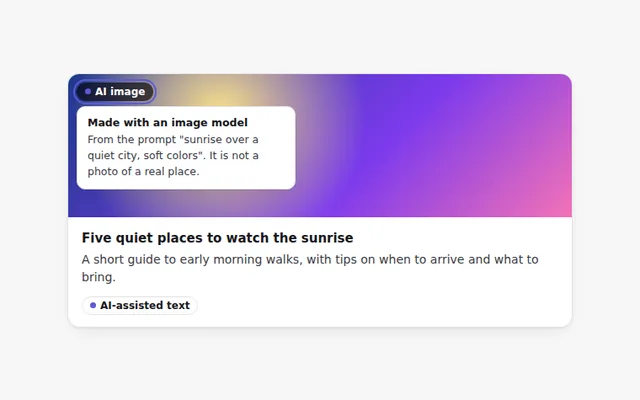
AI-Generated Label
A clear label that marks text or images made by AI. Hover or focus it to see how it was made and what to check.
- Trust and Onboarding
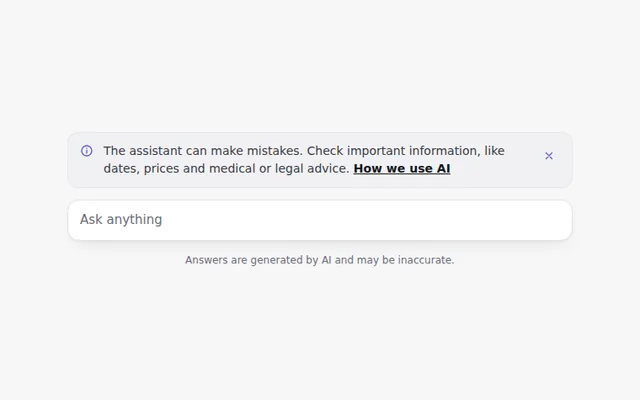
AI Disclaimer Banner
A short, honest notice that the assistant can make mistakes, with a link to learn more. It can be closed and remembers that choice.
- Trust and Onboarding
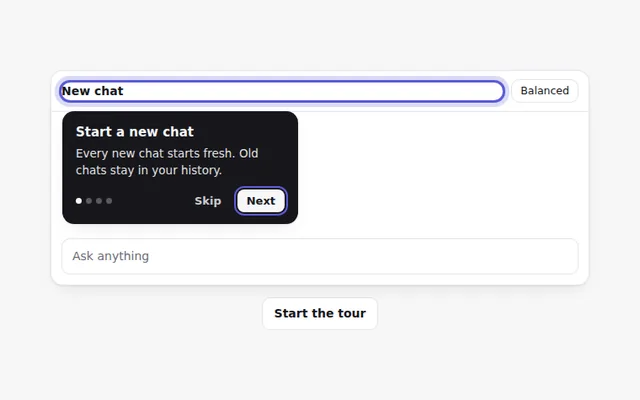
Onboarding Tour
A step by step tour that points at parts of the app with short tips. People can go back, skip, or use the arrow keys.
- Trust and Onboarding
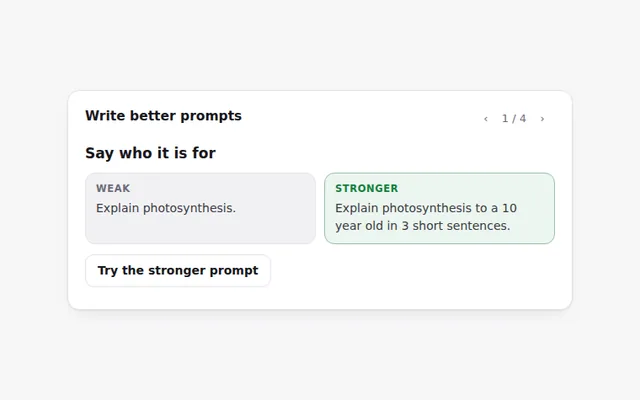
Prompt Tips Card
Tips for writing better prompts, each with a weak and a stronger example side by side. Flip through them with the arrows.
- Trust and Onboarding
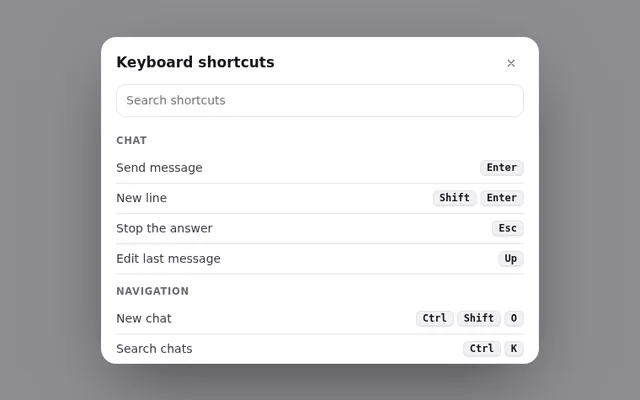
Keyboard Shortcuts Panel
A panel of keyboard shortcuts that opens with the question mark key, with a search box and keys grouped by task.
- Trust and Onboarding
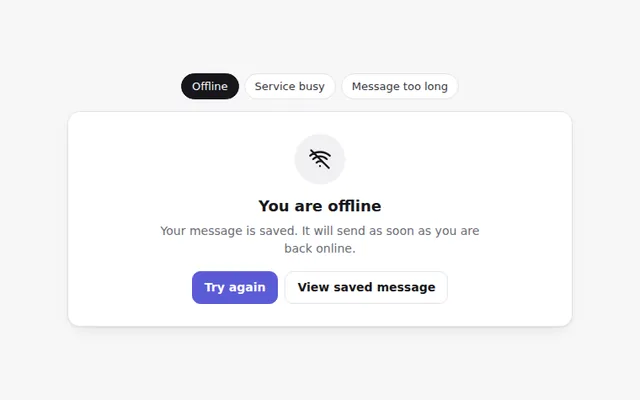
AI Error States
Friendly error screens for common AI problems: no internet, the service is busy, and a message that is too long. Each says what to do next.
- Trust and Onboarding
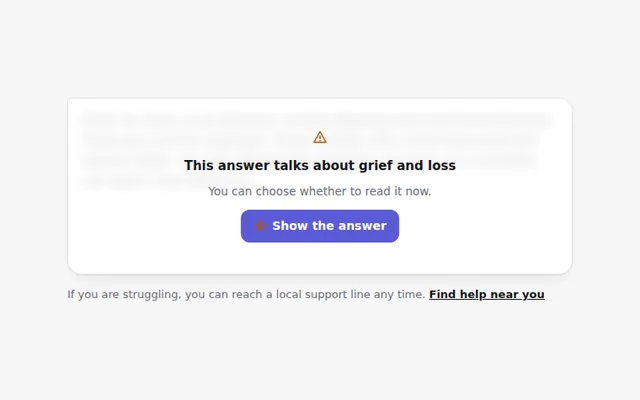
Sensitive Content Notice
Hides an answer about a sensitive topic behind a calm notice, with a clear choice to show it and a link to real help.
- Trust and Onboarding
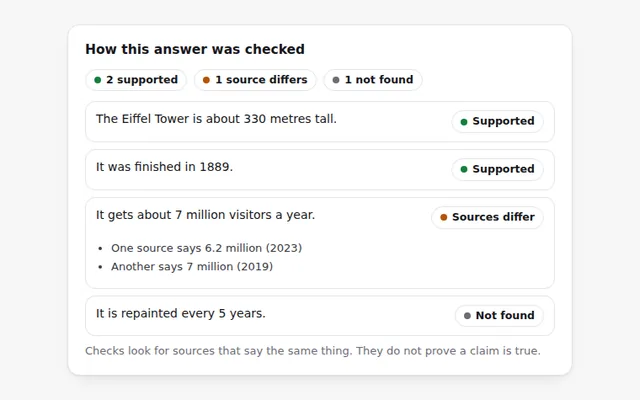
Fact Check Panel
Shows how each claim in an answer was checked: supported by sources, not found, or conflicting. Open a claim to see the sources.
- Trust and Onboarding
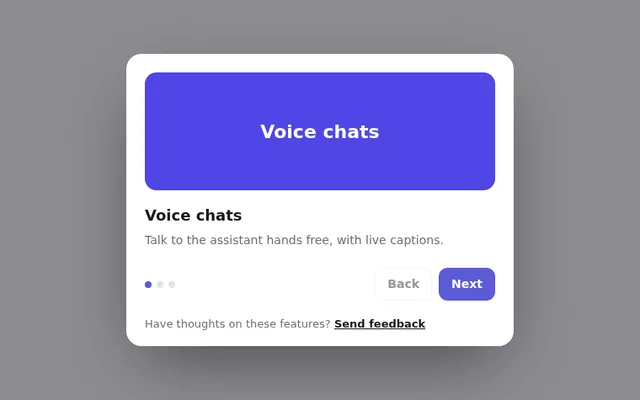
What's New Dialog
A short dialog that introduces new features, with a few slides, Beta labels and a way to send feedback. It shows once per version.
- Trust and Onboarding
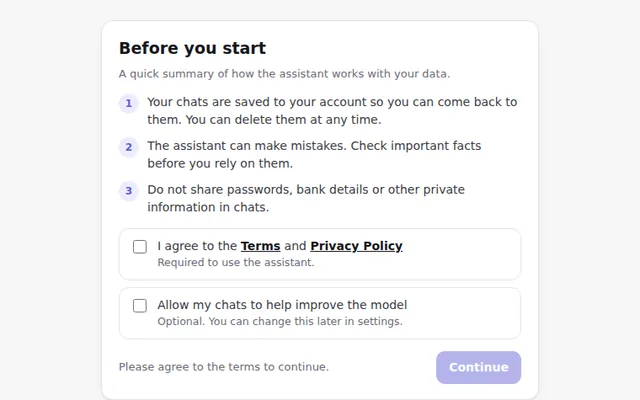
First Run Consent
A clear welcome step before first use that explains how data is used in plain words. People must agree to the terms, and training is a separate, optional choice.
Categories
- Prompt InputBoxes where people type to the AI, from a simple field to slash commands and history.
- Thinking and LoadingAnimations and states that show the AI is working, streaming or using a tool.
- Chat MessagesMessage bubbles, code blocks, sources and actions for AI answers.
- Answer FeedbackRatings, thumbs, comparisons and forms that tell you if an answer helped.
- Tokens and UsageToken meters, context bars, credits and limits that show what each chat costs.
- Model and SettingsModel pickers, sliders and toggles that control how the AI answers.
- Chat LayoutsFull chat windows, sidebars, widgets and empty states.
- Agents and ToolsTool calls, approvals, task plans and logs for AI agents.
- Voice and MediaVoice input, audio answers, image upload and generation progress.
- Trust and OnboardingLabels, notices, tips and error states that help people trust the AI.
Why these components
AI tools are easy to connect, but the interface around them takes time. People expect to paste files, see that the AI is working, know how much a chat costs and tell you when an answer was wrong.
These components give you those pieces, tested and ready, so you can spend your time on the product.
Every component includes
- Plain HTML, CSS and JavaScript in one file
- Light and dark mode
- Keyboard support and screen reader labels
- A layout that fits phones
- Brand colors you can change in one line
Questions
Are these AI UI components free?
Yes. Every component is free for personal and commercial projects under the MIT license, including client work.
Do they need React or a UI library?
No. Each component is one HTML file with plain CSS and JavaScript. You can paste it into any site, or move the markup into React, Vue or Svelte.
Do they connect to an AI model?
No. They are the interface only. The demos use sample text so you can see how they behave, and you connect them to the AI service you use.
Do they work in dark mode and on phones?
Yes. Every component follows the light or dark setting of the device and adjusts to small screens.
Can I change the colors?
Yes. All colors are CSS variables at the top of the file. Change --accent to your brand color and the component follows.